Independent setup & troubleshootingHelping you find your connection.
The guide library

Dynamic DNS does not open a connection through your router

Explore the guide library · Local network setup

Separate a memorable hostname from public reachability, firewall policy and the service you intend to access.
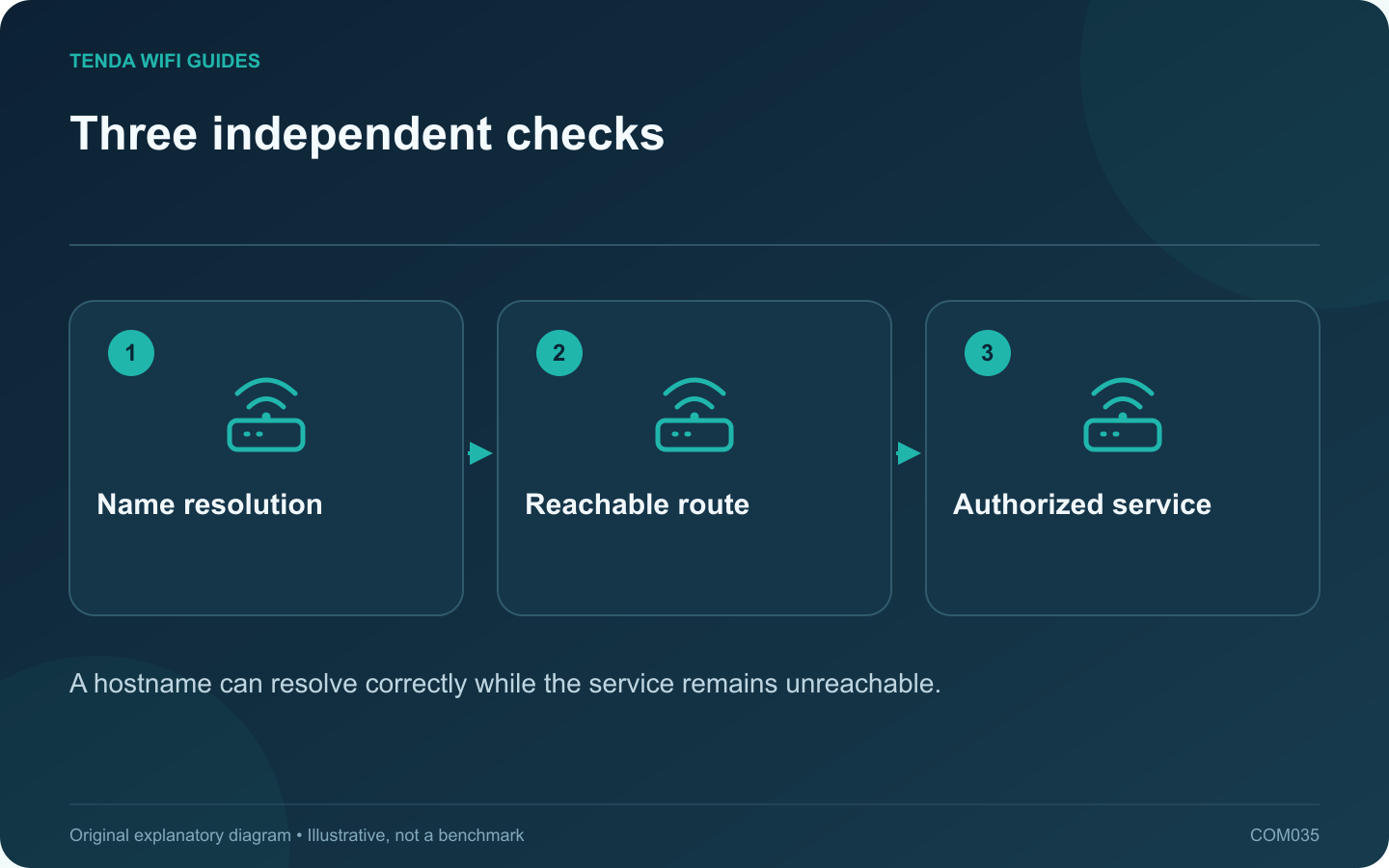
Three independent checks: Name resolution; Reachable route; Authorized service
A hostname can resolve correctly while the service remains unreachable.

Dynamic DNS keeps a hostname associated with a changing address. It does not, by itself, create an inbound route, remove provider address sharing or make a local service safe to expose. Treat naming, reachability and service authentication as separate checks.

Verify the name first

Use the dynamic-DNS provider’s documented status and lookup process to confirm that the hostname points to the intended current address. GL.iNet’s DDNS guidance directs users to compare the active WAN information and includes interactions with VPN settings. Follow the version-specific instructions for your device.

If the name is wrong, fix the update process before adding unrelated forwarding rules. A correct firewall rule aimed at the wrong public address will not make the name work.

Draw the external route

Identify the provider connection, any upstream gateway, your router and the destination service. A second router or ISP address-sharing arrangement can change what inbound access is possible. Ask the provider for the supported options when you cannot establish a usable public route.

Expose only the intended function

Prefer a supported secure remote-access arrangement for home administration. If a particular service genuinely needs forwarding, use its documented protocol, a stable internal destination and strong authentication. Do not expose router management or file sharing simply because a hostname has been created.

  • Record which service the hostname is for.
  • Document the required access rule and destination.
  • Keep the service and router maintained.
  • Remove obsolete rules when the service is retired.

Use an external acceptance test

From an authorized external connection, test the normal service client. Keep DNS resolution results separate from connection and login results. “The name resolves” is not the same as “the server is reachable,” and reaching a login screen is not proof that access permissions are correct.

Save the recovery steps and account details privately. A dynamic hostname is a useful address-book mechanism; the network policy still determines what anyone can do with it.

Sources and editorial notes

Sources checked 8 October 2026. Independent guidance and original illustrations; product comparisons use published specifications rather than hands-on benchmarks. Check the exact model, revision and regional documentation before changing settings.

Related guides

300 FAQs across our guide libraries

Quick answers

100 practical questions from Tenda WiFi Guides.

Browse all 100 FAQs
Does Dynamic DNS make a home service reachable automatically?

Dynamic DNS keeps a hostname associated with a changing address. It does not, by itself, create an inbound route, remove provider address sharing or make a local service safe to expose. Treat naming, reachability and service authentication as separate checks. Use the dynamic-DNS provider's documented status and lookup process to confirm that the hostname points to the intended current address. GL.iNet's DDNS guidance directs users to compare the active WAN information and includes interactions with VPN settings. Follow the version-specific instructions for your device.

Read the full guide and sources
When can changing the router’s LAN subnet help?

An overlapping private address range can make a remote network difficult to reach through a VPN or another routed connection. Changing the home LAN range may resolve the overlap, but only when the complete local address plan moves with it. Do not change a work-managed network without its administrator. Compare the local network and the remote network information supplied by the responsible administrator. A similar-looking number is not enough; the subnet mask or prefix determines the range. Ask for a non-overlapping private range appropriate to the arrangement.

Read the full guide and sources
How should I set up read-only router USB file sharing?

A read-only folder can make household reference files available without giving every device permission to change them. If your router supports network storage, configure a small selected folder and a named account before sharing a whole drive. Check the exact router's supported protocols, filesystems and power requirements. GL.iNet's storage guide lists model-dependent support and separate read-only and read-write permissions. A physical USB socket alone does not prove the intended sharing function is available.

Read the full guide and sources
How should I choose a guest Wi-Fi bandwidth limit?

A guest bandwidth limit can keep visitors' large transfers from dominating a small connection, but an arbitrary low number can make basic use frustrating. First decide whether the goal is protecting calls, limiting total consumption or controlling a particular device. Determine whether the router limits each guest, a selected client or the entire guest network. Check upload and download separately. Vendor guides such as GL.iNet's guest-network documentation describe supported controls, but availability varies with model, firmware and operating mode.

Read the full guide and sources
Independent. Practical. Clear.

Tenda WiFi Guides is an independent information website. We are not affiliated with or endorsed by Tenda. Product names belong to their respective owners.