Explore the guide library · Local network setup
Give a network printer a predictable DHCP address and verify it after reconnecting, without creating a competing manual address.
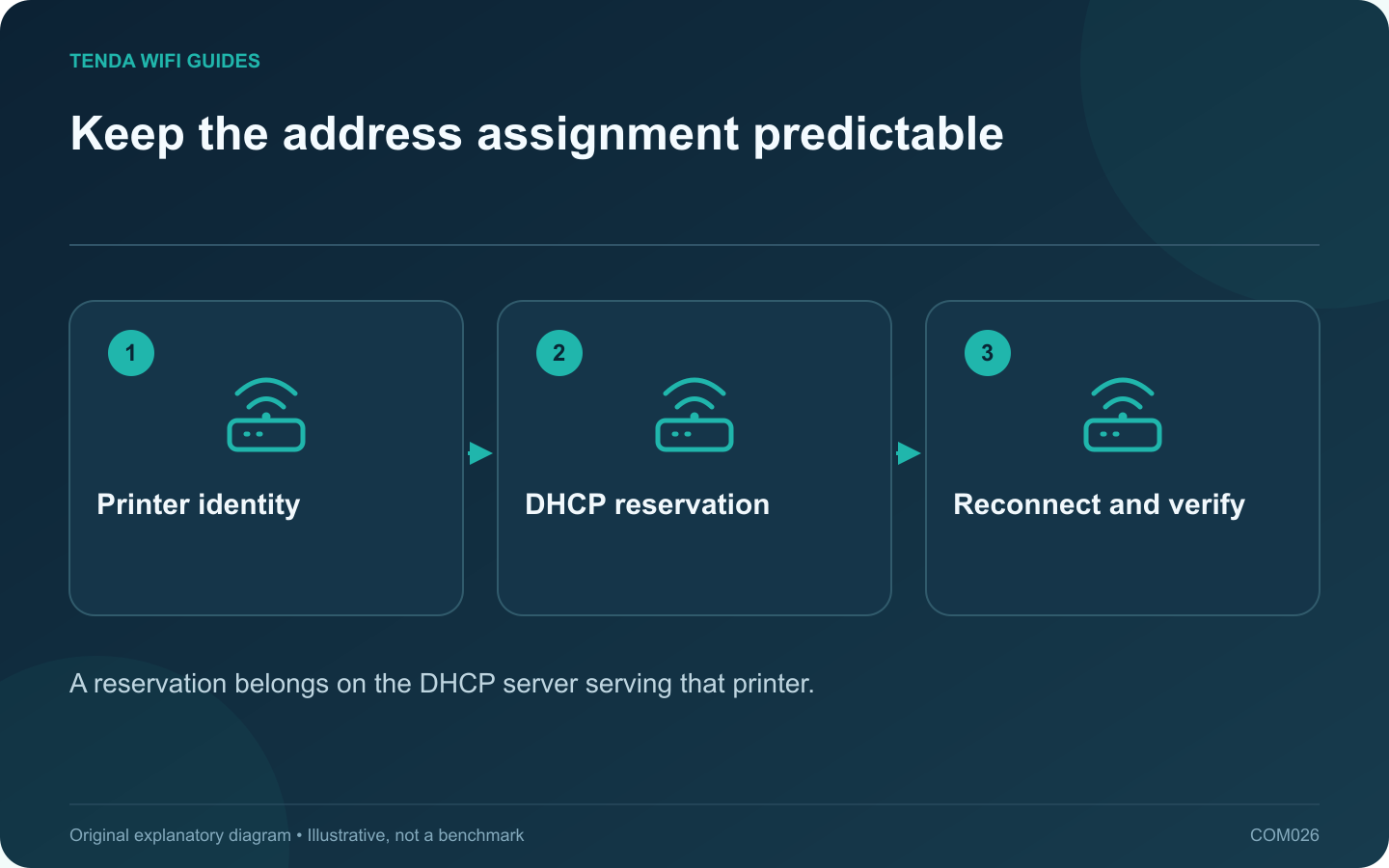
A printer shortcut becomes fragile when it points to an address that later changes. A DHCP reservation can make the address predictable while leaving the printer on automatic network configuration. Set it on the device that actually supplies DHCP to the printer, not automatically on whichever access point is nearest.
Identify the correct printer interface
Read the printer’s network report and compare it with the router’s client list. A printer with Ethernet and Wi-Fi can have different interface identities. Reserve the interface you intend to use, then give the entry a recognizable label such as office printer.
GL.iNet’s LAN guide describes reservations as repeatable DHCP assignments and notes that clients must reconnect for a new reservation to take effect. Other products may present the control under a different name.
Make one controlled change
- Record the current printer address, connection type and working print queue.
- Select an appropriate address using the router’s supported reservation workflow.
- Check that the address is not already assigned manually to another device.
- Save the reservation and reconnect or restart the printer as its manual permits.
- Read the printer’s current network report again before changing computer shortcuts.
Test the whole workflow
Print a simple page from the usual computer. Then let the printer sleep and wake it for another job. If scanning or a mobile printing app matters, test those separately; a successful print does not establish that every discovery feature works.
A reservation stabilizes an address. It does not change a guest-network restriction, repair a printer driver or grant access through a firewall.
Keep the inventory synchronized
If you later switch the printer from Wi-Fi to Ethernet, revisit the reservation instead of assuming it follows the physical device automatically. Remove an obsolete reservation only after confirming the old interface is no longer used.
Keep this record with your router migration notes. A replacement router needs its own deliberate reservation configuration; it does not inherit the old device’s DHCP database by recognizing the same Wi-Fi name.
Sources and editorial notes
Sources checked 8 October 2026. Independent guidance and original illustrations; product comparisons use published specifications rather than hands-on benchmarks. Check the exact model, revision and regional documentation before changing settings.