Explore the guide library · Local network setup
Share selected files locally while keeping write access limited and maintaining a separate backup.
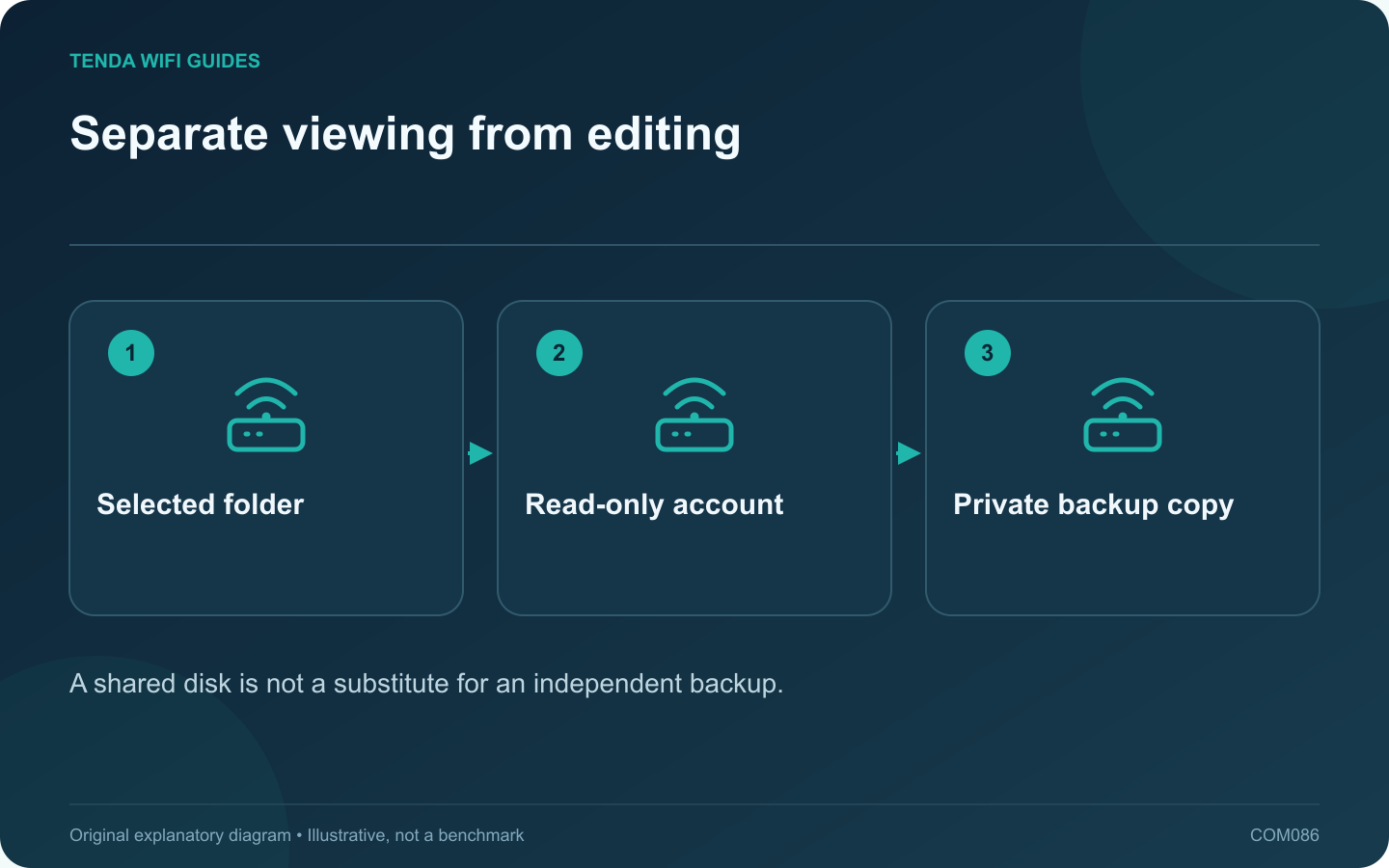
A read-only folder can make household reference files available without giving every device permission to change them. If your router supports network storage, configure a small selected folder and a named account before sharing a whole drive.
Confirm the storage implementation
Check the exact router’s supported protocols, filesystems and power requirements. GL.iNet’s storage guide lists model-dependent support and separate read-only and read-write permissions. A physical USB socket alone does not prove the intended sharing function is available.
Prepare non-sensitive test files
Use a copy of a few ordinary documents or images for the initial test. Keep the originals elsewhere. Avoid attaching your only backup drive or exposing a directory that contains passwords, private records or application configuration files.
Configure the smallest useful share
- Connect storage using the manufacturer’s supported power arrangement.
- Select the intended folder rather than the entire disk.
- Create a named account with only read permission.
- Keep anonymous and unnecessary upstream access disabled.
- Connect through the documented local sharing path.
Verify permission behavior
From the reader account, open a file and then attempt to create a harmless temporary file in the share. Creation should fail when the account is intended to be read-only. Check with the appropriate editing account separately if one is required.
Test another household device and verify that a guest-network client cannot access the private share when isolation is part of your policy.
Maintain the data separately
Keep an independent backup and a record of who has write access. Remove accounts or credentials that are no longer needed. Before disconnecting storage, follow the product’s supported safe-removal procedure.
This setup is suitable for a simple local sharing task when the router’s implementation meets the requirement. For more demanding permissions, backup automation or concurrent workloads, evaluate a dedicated storage system rather than assuming a router’s USB service provides every NAS function.
Sources and editorial notes
Sources checked 8 October 2026. Independent guidance and original illustrations; product comparisons use published specifications rather than hands-on benchmarks. Check the exact model, revision and regional documentation before changing settings.