Independent setup & troubleshootingHelping you find your connection.
The guide library

DLNA vs SMB on router storage: media browsing or file access?

Explore the guide library · Local network setup

Choose the service your television or computer supports and restrict the published folders to their intended purpose.
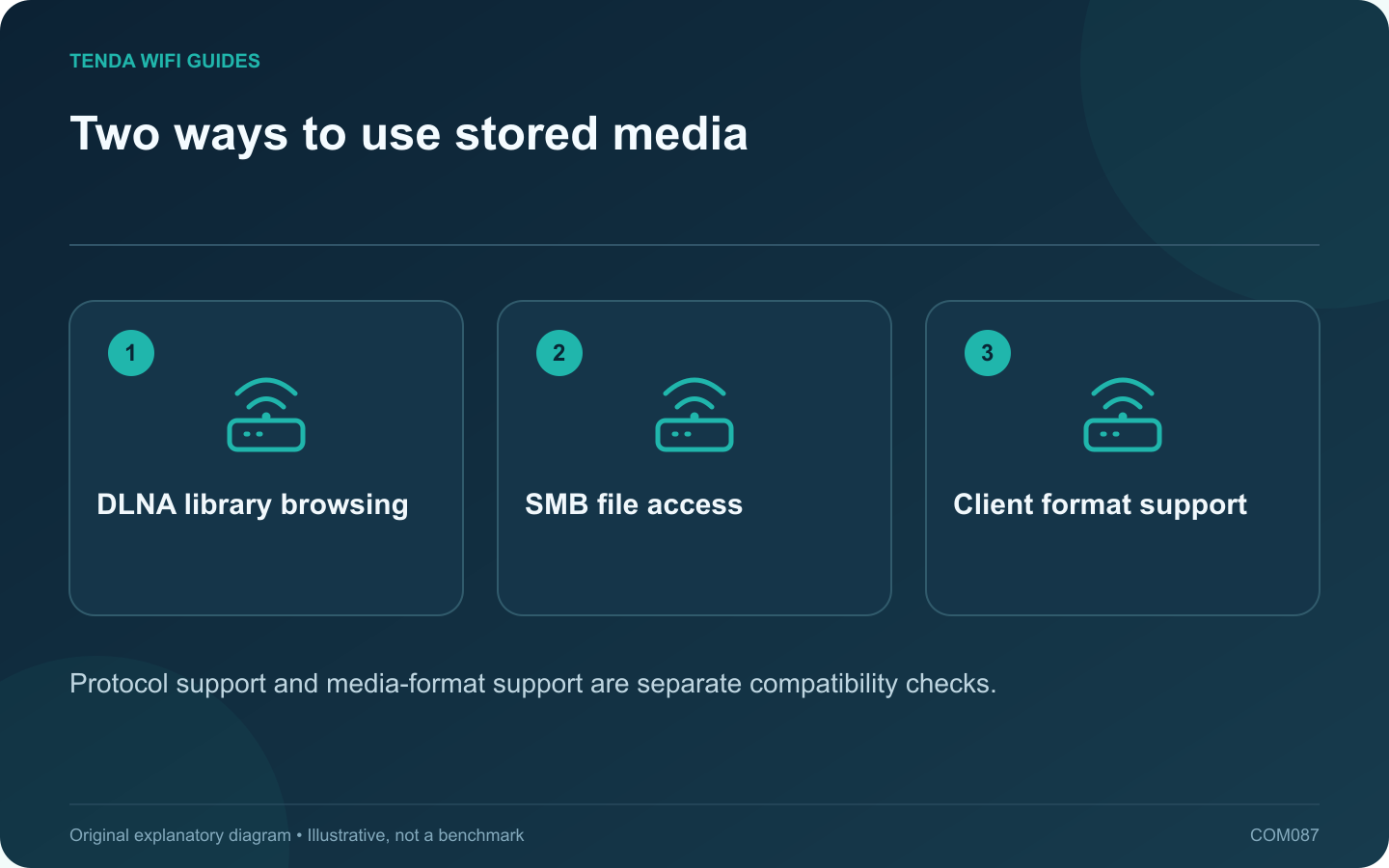
Two ways to use stored media: DLNA library browsing; SMB file access; Client format support
Protocol support and media-format support are separate compatibility checks.

A television browsing a media library and a computer opening a shared folder may use different services on the same router-attached disk. Choose the service supported by the client instead of enabling every available sharing option.

Understand the task difference

DLNA commonly provides media discovery and library browsing for compatible players. SMB provides file-share access for compatible computers and applications. GL.iNet’s network-storage documentation lists both on supported models, while some devices support a smaller set of services.

Check the client as well as the router

A television may discover a library but still be unable to play a particular file format. Confirm the player’s supported container, video and audio formats. Do not assume the router converts every file into a format the television understands.

Start with a small media folder

  1. Copy a few known-compatible, non-sensitive media files into a dedicated folder.
  2. Enable only the supported service you intend to use.
  3. Select that folder as the published location.
  4. Connect the player to the permitted home network.
  5. Test discovery, playback and seeking within a file.

Keep documents out of the media library

Media discovery should not become an accidental way to expose private household files. Review the selected path and access behavior. For SMB, use appropriate named accounts and permissions instead of anonymous access.

Diagnose the correct layer

If the server is missing entirely, investigate client network placement and discovery requirements. If it appears but a file will not play, investigate the media format before changing router channels. If playback pauses, inspect the storage and network path with the same file on a known-good client.

Keep a separate backup of the media collection. Choose a dedicated media or storage system if you need capabilities the router does not document. A useful setup exposes only the intended library and works with the actual player’s supported features.

Sources and editorial notes

Sources checked 8 October 2026. Independent guidance and original illustrations; product comparisons use published specifications rather than hands-on benchmarks. Check the exact model, revision and regional documentation before changing settings.

Related guides

300 FAQs across our guide libraries

Quick answers

100 practical questions from Tenda WiFi Guides.

Browse all 100 FAQs
Should I use DLNA or SMB on router storage?

A television browsing a media library and a computer opening a shared folder may use different services on the same router-attached disk. Choose the service supported by the client instead of enabling every available sharing option. DLNA commonly provides media discovery and library browsing for compatible players. SMB provides file-share access for compatible computers and applications. GL.iNet's network-storage documentation lists both on supported models, while some devices support a smaller set of services.

Read the full guide and sources
How should I set up read-only router USB file sharing?

A read-only folder can make household reference files available without giving every device permission to change them. If your router supports network storage, configure a small selected folder and a named account before sharing a whole drive. Check the exact router's supported protocols, filesystems and power requirements. GL.iNet's storage guide lists model-dependent support and separate read-only and read-write permissions. A physical USB socket alone does not prove the intended sharing function is available.

Read the full guide and sources
Why reserve a printer’s IP address?

A printer shortcut becomes fragile when it points to an address that later changes. A DHCP reservation can make the address predictable while leaving the printer on automatic network configuration. Set it on the device that actually supplies DHCP to the printer, not automatically on whichever access point is nearest. Read the printer's network report and compare it with the router's client list. A printer with Ethernet and Wi-Fi can have different interface identities. Reserve the interface you intend to use, then give the entry a recognizable label such as office printer.

Read the full guide and sources
Can I open router settings without working internet service?

Many routers provide a local management interface that can remain reachable during an internet outage, provided the local network and device are working. A cloud-dependent app can fail at the same time because it needs a different path. Prepare the supported local method before you need it. Find the current local address or documented management name, the required protocol and any customized port. Keep the administrator credential in a private record. GL.iNet's access-control guide demonstrates that local management interfaces and remote controls are separate settings.

Read the full guide and sources
Independent. Practical. Clear.

Tenda WiFi Guides is an independent information website. We are not affiliated with or endorsed by Tenda. Product names belong to their respective owners.