Independent setup & troubleshootingHelping you find your connection.
The guide library

Set up temporary guest Wi-Fi without sharing your main network password

Explore the guide library · Router security

Give visitors a protected connection, verify its access limits and switch it off after the visit.
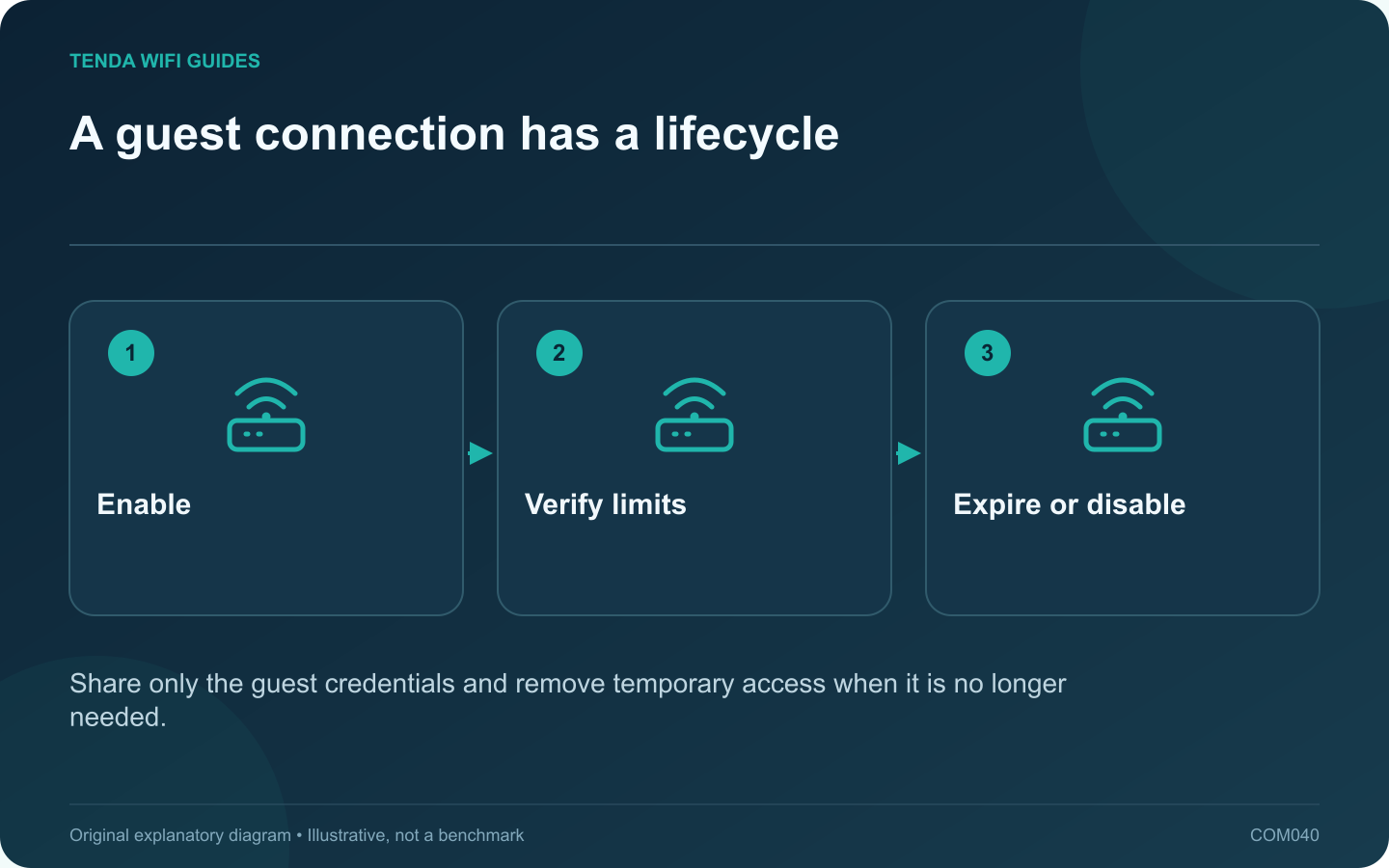
A guest connection has a lifecycle: Enable; Verify limits; Expire or disable
Share only the guest credentials and remove temporary access when it is no longer needed.

A temporary guest network is a practical way to give visitors internet access without distributing the household’s main wireless credential. Configure the access limits before sharing it, then decide when the network should expire or be disabled.

Choose the visitor’s actual needs

Most visitors need internet access. Some may need a shared television or printer. Identify that requirement explicitly, because allowing access to the entire private network is a much broader change than enabling one shared activity.

TP-Link’s Deco guest guide describes duration settings and model-dependent local-access controls. Your router may offer a different timer or no timer at all. Verify the available options in the current interface instead of assuming every guest feature includes automatic expiry.

Prepare a protected guest connection

  1. Use a recognizable guest network name and a suitable security mode.
  2. Set a strong guest credential that differs from the main network and administrator passwords.
  3. Apply the intended local-access and guest-to-guest restrictions.
  4. Set the duration if supported, or note when you will disable the network manually.

Test before sharing

Join from your own spare phone or laptop. Open a normal website, then try an owned local resource that should remain private. Confirm the resource is working from an authorized main-network client so a failed guest attempt is meaningful.

If visitors need a television, test that exact casting or streaming workflow. Discovery features can depend on local communication, so an internet-only guest network may not support them.

Share with the intended people

Use the router’s supported sharing method if convenient. Treat a Wi-Fi QR code like the password it represents: do not place a permanent image containing household access details on a public webpage.

After the visit, confirm the guest network expired or disable it. Review any temporary local-access exceptions and remove those that are no longer needed. A guest setup is complete when both the visit and the cleanup have a clear plan.

Sources and editorial notes

Sources checked 8 October 2026. Independent guidance and original illustrations; product comparisons use published specifications rather than hands-on benchmarks. Check the exact model, revision and regional documentation before changing settings.

Related guides

300 FAQs across our guide libraries

Quick answers

100 practical questions from Tenda WiFi Guides.

Browse all 100 FAQs
How should I set up temporary guest Wi-Fi?

A temporary guest network is a practical way to give visitors internet access without distributing the household's main wireless credential. Configure the access limits before sharing it, then decide when the network should expire or be disabled. Most visitors need internet access. Some may need a shared television or printer. Identify that requirement explicitly, because allowing access to the entire private network is a much broader change than enabling one shared activity.

Read the full guide and sources
How can I check whether guest Wi-Fi is isolated?

A guest network should behave according to the access policy you intend. Giving it a different name is not enough to prove that visitors cannot reach your computers or router settings. Test from a device connected as an ordinary guest, with no administrator privileges. For a typical visit, internet access may be sufficient. If guests need a shared television or printer, document that exception instead of disabling every isolation setting. Keep the household's private storage and management interfaces outside the intended access list.

Read the full guide and sources
Should I use WPA3-only or WPA2/WPA3 transition mode?

Choose the strongest supported Wi-Fi security arrangement that your required devices can use reliably. A household with older equipment may need a transition plan rather than changing the main network and hoping every device reconnects. List the oldest printer, smart plug, camera and computer that must remain connected. Check their manufacturer documentation for supported security modes and available updates. Test them individually instead of assuming all older devices behave alike.

Read the full guide and sources
How should I choose between UPnP and manual forwarding?

UPnP can let applications request port mappings automatically, while manual forwarding places the rule under the administrator's direct control. The right choice depends on the devices you trust and the access the application actually needs. Neither option should be enabled blindly to improve a speed-test number. Read the current official support instructions for the game, console or service. Identify whether inbound reachability is required and which method the vendor supports. If the application already works correctly, a change may offer no useful benefit.

Read the full guide and sources
Independent. Practical. Clear.

Tenda WiFi Guides is an independent information website. We are not affiliated with or endorsed by Tenda. Product names belong to their respective owners.