Independent setup & troubleshootingHelping you find your connection.
The guide library

Before enabling IPv6 on a home router, check these four requirements

Explore the guide library · Local network setup

Confirm provider support, router mode, client addressing and feature compatibility before changing the IPv6 configuration.
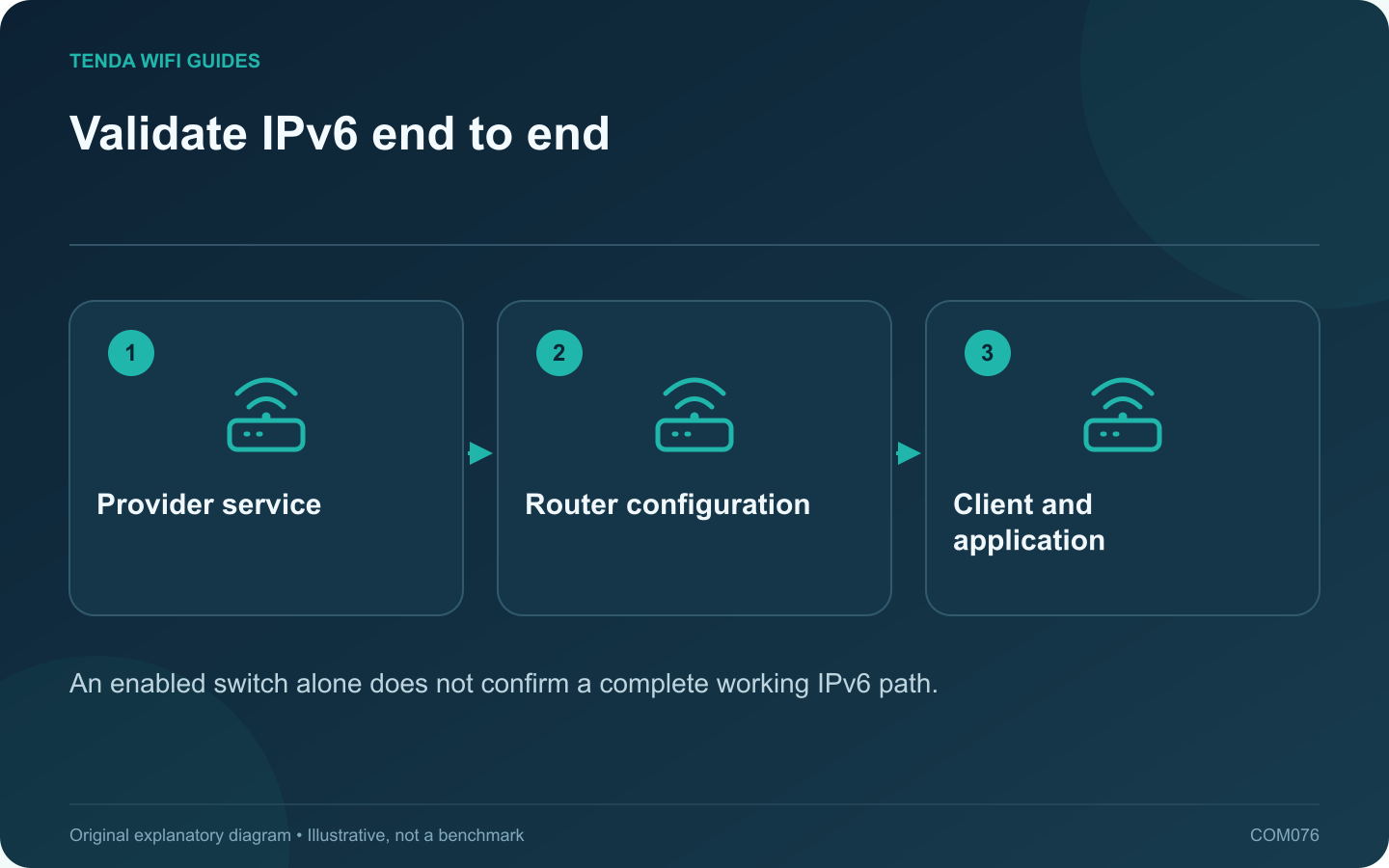
Validate IPv6 end to end: Provider service; Router configuration; Client and application
An enabled switch alone does not confirm a complete working IPv6 path.

IPv6 setup is a connection-planning task, not a universal speed upgrade. Your provider, router and clients must support a compatible arrangement. Begin with the provider’s published configuration instructions and the exact router firmware you are using.

Ask for the required service details

Confirm whether IPv6 is available on the subscription and how the router should obtain its configuration. Use provider-supplied values when a specific setting is required. Do not copy an address or prefix from a screenshot belonging to another customer.

Read mode and feature limitations

GL.iNet’s current documentation lists several IPv6 modes and warns that some other features have IPv6 limitations. That is a reason to check the current product guide carefully, especially when using filtering, remote management or VPN functions. The presence of an IPv6 checkbox does not prove every policy works identically on both protocols.

Make a reversible test

  1. Save the existing configuration information privately.
  2. Record the router and firmware version.
  3. Apply the provider-supported IPv6 arrangement.
  4. Reconnect a test client and inspect its network information.
  5. Test ordinary websites, the required VPN and any household filtering rules.

Check application behavior

Some services may continue using IPv4 while others use IPv6. A successful page load therefore does not establish which path was used. Use a reputable diagnostic appropriate to your platform and record the observed result without exposing the full address publicly.

If only one application fails, preserve the evidence before changing several settings. Compare the documented feature support and contact the appropriate provider or vendor with a redacted report.

Keep the final configuration understandable

Document the selected mode, source of DNS settings and any tested limitations. Retain the previous working arrangement until the normal household tasks pass. The objective is a supported, maintainable connection with deliberate security behavior, not enabling every available protocol without checking its consequences.

Sources and editorial notes

Sources checked 8 October 2026. Independent guidance and original illustrations; product comparisons use published specifications rather than hands-on benchmarks. Check the exact model, revision and regional documentation before changing settings.

Related guides

300 FAQs across our guide libraries

Quick answers

100 practical questions from Tenda WiFi Guides.

Browse all 100 FAQs
What needs to support IPv6 before I enable it?

IPv6 setup is a connection-planning task, not a universal speed upgrade. Your provider, router and clients must support a compatible arrangement. Begin with the provider's published configuration instructions and the exact router firmware you are using. Confirm whether IPv6 is available on the subscription and how the router should obtain its configuration. Use provider-supplied values when a specific setting is required. Do not copy an address or prefix from a screenshot belonging to another customer.

Read the full guide and sources
How should I set up read-only router USB file sharing?

A read-only folder can make household reference files available without giving every device permission to change them. If your router supports network storage, configure a small selected folder and a named account before sharing a whole drive. Check the exact router's supported protocols, filesystems and power requirements. GL.iNet's storage guide lists model-dependent support and separate read-only and read-write permissions. A physical USB socket alone does not prove the intended sharing function is available.

Read the full guide and sources
Does Dynamic DNS make a home service reachable automatically?

Dynamic DNS keeps a hostname associated with a changing address. It does not, by itself, create an inbound route, remove provider address sharing or make a local service safe to expose. Treat naming, reachability and service authentication as separate checks. Use the dynamic-DNS provider's documented status and lookup process to confirm that the hostname points to the intended current address. GL.iNet's DDNS guidance directs users to compare the active WAN information and includes interactions with VPN settings. Follow the version-specific instructions for your device.

Read the full guide and sources
How do I choose the size of my DHCP address pool?

A home network's DHCP pool needs enough addresses for the clients that may connect, including devices you do not use every day. Count the network interfaces and visitors, not just the number of people in the house. A full pool can prevent a new device from receiving a useful configuration even while existing devices remain online. Compare the router's current client list with a room-by-room list of televisions, speakers, printers, cameras, consoles and computers. Include wired devices. Note occasional equipment such as a work laptop or visiting family phone that may not appear in today's online list.

Read the full guide and sources
Independent. Practical. Clear.

Tenda WiFi Guides is an independent information website. We are not affiliated with or endorsed by Tenda. Product names belong to their respective owners.