Independent setup & troubleshootingHelping you find your connection.
The guide library

EasyMesh compatibility: check more than the logo before adding a router

Explore the guide library · Router buying guides

Verify the exact main and satellite models, firmware and backhaul method before expanding an existing mesh system.
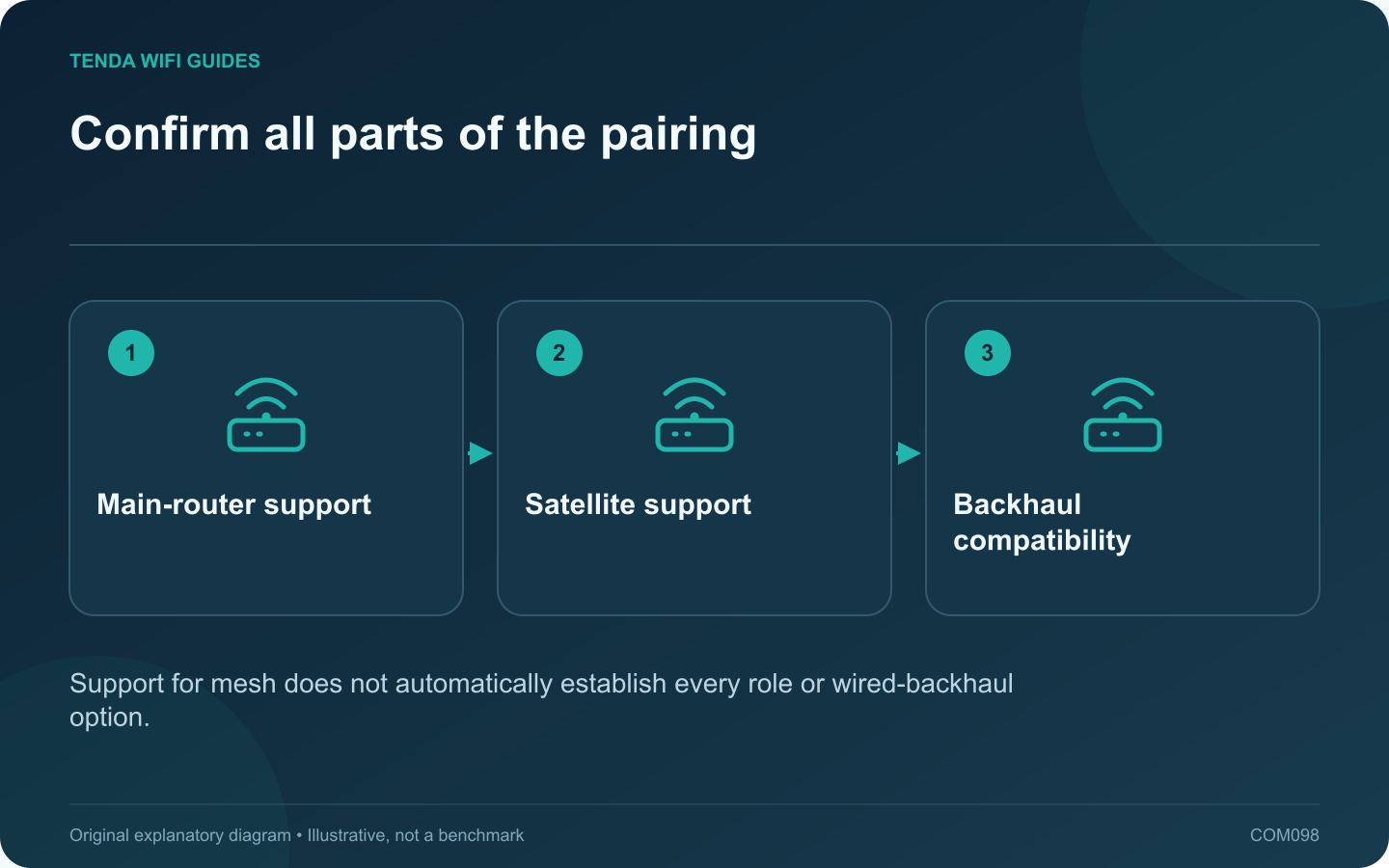
Confirm all parts of the pairing: Main-router support; Satellite support; Backhaul compatibility
Support for mesh does not automatically establish every role or wired-backhaul option.

Before buying a second router for an existing mesh system, check the exact pairing you intend to use. A mesh logo or a product-family name does not establish every supported role, firmware requirement or backhaul method.

Write the intended arrangement

Record the main router model and revision, the proposed satellite and whether they will connect wirelessly or through Ethernet. Include the current firmware versions. This is the minimum information needed for a meaningful compatibility check.

Use the manufacturer’s current list

TP-Link’s EasyMesh setup guide directs users to verify support on both devices. Its compatibility information separately notes requirements for Ethernet backhaul. Check the relevant regional list and release notes because support can change with hardware revisions and updates.

Confirm the operating role

  • Can the proposed device act as a satellite?
  • Does the main router support the intended addition method?
  • Is Ethernet backhaul supported on both ends?
  • Are there feature limits in the selected operating mode?
  • Does the vendor support the proposed cross-brand pairing?

Test the pairing before final placement

Follow the supported setup procedure at a convenient location, then verify the satellite appears in the management interface. Move it to the intended room and inspect the actual uplink or backhaul status. A client connecting nearby does not prove the node is using the desired Ethernet path.

Keep expectations specific

Check guest behavior, client roaming and management functions you need. Mixed hardware may not expose every feature identically. Avoid claiming a universal seamless result from a compatibility badge.

If the exact arrangement is not documented, seek a vendor-supported answer before purchasing or use a returnable trial. Expanding an existing network is easiest when the role and link method are known in advance, rather than discovered after two devices refuse to form the intended system.

Sources and editorial notes

Sources checked 8 October 2026. Independent guidance and original illustrations; product comparisons use published specifications rather than hands-on benchmarks. Check the exact model, revision and regional documentation before changing settings.

Related guides

300 FAQs across our guide libraries

Quick answers

100 practical questions from Tenda WiFi Guides.

Browse all 100 FAQs
Does an EasyMesh logo guarantee that two routers will work together?

Before buying a second router for an existing mesh system, check the exact pairing you intend to use. A mesh logo or a product-family name does not establish every supported role, firmware requirement or backhaul method. Record the main router model and revision, the proposed satellite and whether they will connect wirelessly or through Ethernet. Include the current firmware versions. This is the minimum information needed for a meaningful compatibility check.

Read the full guide and sources
Does an advertised device count describe real router capacity?

An advertised connected-device count can help describe a product category, but it does not tell you how the router will handle your household's simultaneous work. A collection of quiet sensors creates a different demand from several large uploads and interactive calls. Group devices by the work they perform: occasional control messages, streaming, calls, gaming, backups and local transfers. Mark which tasks happen together and which must remain responsive. This is more useful than adding every device in the client list and comparing the total with a box headline.

Read the full guide and sources
What should I verify before using Spitz AX for cellular backup?

A cellular router can provide a useful alternative when fixed broadband fails, but only if it works with your carrier, location and data plan. For Spitz AX, begin with the cellular requirements rather than the Wi-Fi speed class. Check the exact modem variant, supported bands and carrier requirements for the unit being sold. GL.iNet lists Spitz AX as a 4G/5G router with two Nano-SIM slots. Do not interpret two SIM slots as proof of two independent active modems or automatic bandwidth bonding.

Read the full guide and sources
What should I check before importing a 6 GHz router?

An overseas router listing can look attractive, especially when it advertises an additional band. Before importing, verify that the exact regional product and your client devices support the intended operation where you will use them. A generation label alone is not enough. Some Wi-Fi 7 routers are dual-band and do not include 6 GHz. Compare the actual band specification rather than assuming every newer model includes all capabilities of an older tri-band product. Tenda's RX27 Pro and TE6L Pro illustrate why the detailed radio list matters.

Read the full guide and sources
Independent. Practical. Clear.

Tenda WiFi Guides is an independent information website. We are not affiliated with or endorsed by Tenda. Product names belong to their respective owners.