Independent setup & troubleshootingHelping you find your connection.
The guide library

Create a read-only family folder on supported router USB storage

Explore the guide library · Local network setup

Share selected files locally while keeping write access limited and maintaining a separate backup.
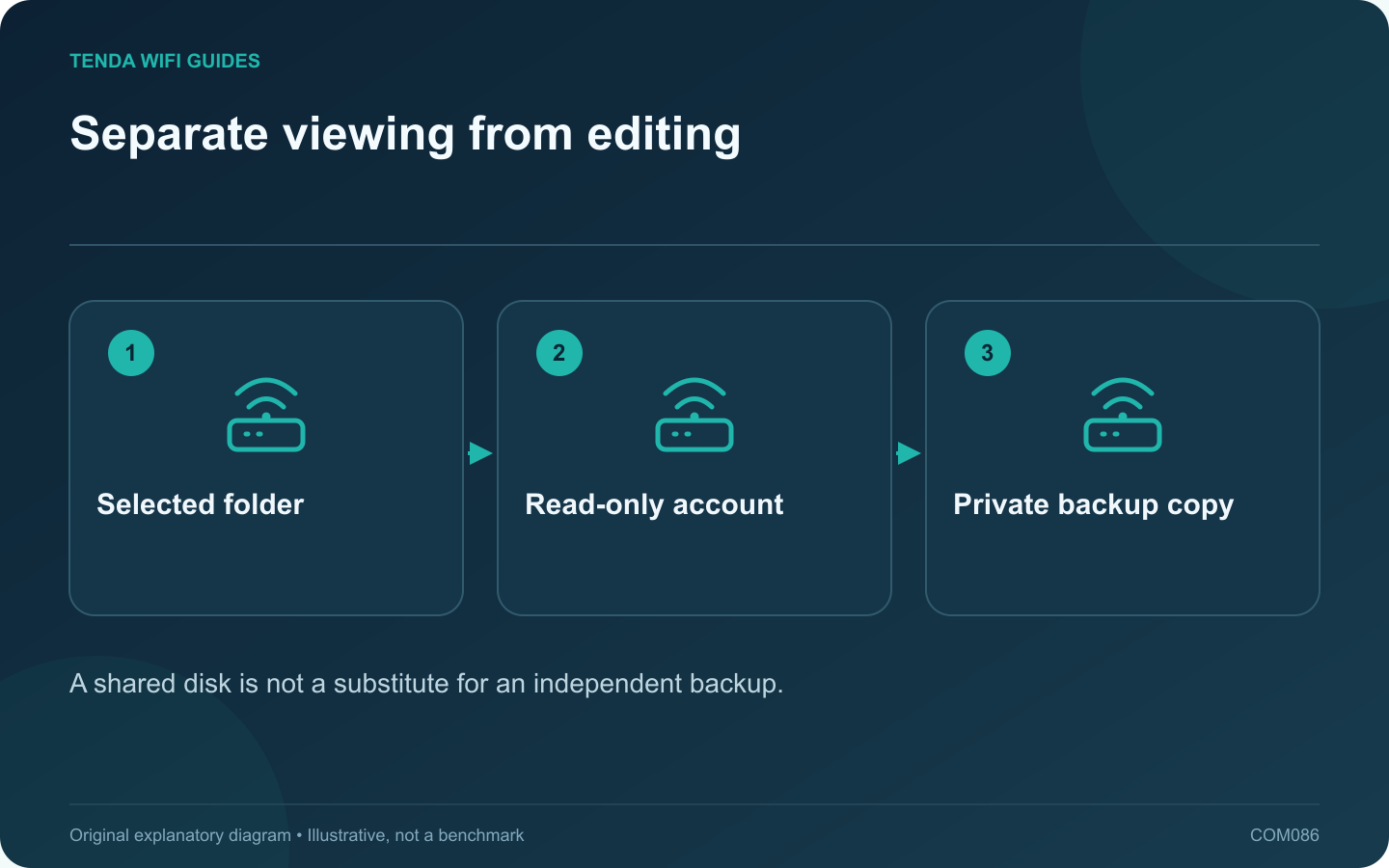
Separate viewing from editing: Selected folder; Read-only account; Private backup copy
A shared disk is not a substitute for an independent backup.

A read-only folder can make household reference files available without giving every device permission to change them. If your router supports network storage, configure a small selected folder and a named account before sharing a whole drive.

Confirm the storage implementation

Check the exact router’s supported protocols, filesystems and power requirements. GL.iNet’s storage guide lists model-dependent support and separate read-only and read-write permissions. A physical USB socket alone does not prove the intended sharing function is available.

Prepare non-sensitive test files

Use a copy of a few ordinary documents or images for the initial test. Keep the originals elsewhere. Avoid attaching your only backup drive or exposing a directory that contains passwords, private records or application configuration files.

Configure the smallest useful share

  1. Connect storage using the manufacturer’s supported power arrangement.
  2. Select the intended folder rather than the entire disk.
  3. Create a named account with only read permission.
  4. Keep anonymous and unnecessary upstream access disabled.
  5. Connect through the documented local sharing path.

Verify permission behavior

From the reader account, open a file and then attempt to create a harmless temporary file in the share. Creation should fail when the account is intended to be read-only. Check with the appropriate editing account separately if one is required.

Test another household device and verify that a guest-network client cannot access the private share when isolation is part of your policy.

Maintain the data separately

Keep an independent backup and a record of who has write access. Remove accounts or credentials that are no longer needed. Before disconnecting storage, follow the product’s supported safe-removal procedure.

This setup is suitable for a simple local sharing task when the router’s implementation meets the requirement. For more demanding permissions, backup automation or concurrent workloads, evaluate a dedicated storage system rather than assuming a router’s USB service provides every NAS function.

Sources and editorial notes

Sources checked 8 October 2026. Independent guidance and original illustrations; product comparisons use published specifications rather than hands-on benchmarks. Check the exact model, revision and regional documentation before changing settings.

Related guides

300 FAQs across our guide libraries

Quick answers

100 practical questions from Tenda WiFi Guides.

Browse all 100 FAQs
How should I set up read-only router USB file sharing?

A read-only folder can make household reference files available without giving every device permission to change them. If your router supports network storage, configure a small selected folder and a named account before sharing a whole drive. Check the exact router's supported protocols, filesystems and power requirements. GL.iNet's storage guide lists model-dependent support and separate read-only and read-write permissions. A physical USB socket alone does not prove the intended sharing function is available.

Read the full guide and sources
Should I use DLNA or SMB on router storage?

A television browsing a media library and a computer opening a shared folder may use different services on the same router-attached disk. Choose the service supported by the client instead of enabling every available sharing option. DLNA commonly provides media discovery and library browsing for compatible players. SMB provides file-share access for compatible computers and applications. GL.iNet's network-storage documentation lists both on supported models, while some devices support a smaller set of services.

Read the full guide and sources
Should I use a DHCP reservation or a manual static address?

For an ordinary home device that needs a predictable address, a DHCP reservation is often easier to maintain because the router holds the assignment. A manual static address lives on the client instead. Either can be appropriate, but mixing them without an address plan creates avoidable confusion. With a reservation, the client still requests its configuration from DHCP and the server selects the reserved address. GL.iNet documents this behavior in its LAN guide. With a manual client configuration, you must maintain the address and the associated network settings on that device.

Read the full guide and sources
How should I choose a guest Wi-Fi bandwidth limit?

A guest bandwidth limit can keep visitors' large transfers from dominating a small connection, but an arbitrary low number can make basic use frustrating. First decide whether the goal is protecting calls, limiting total consumption or controlling a particular device. Determine whether the router limits each guest, a selected client or the entire guest network. Check upload and download separately. Vendor guides such as GL.iNet's guest-network documentation describe supported controls, but availability varies with model, firmware and operating mode.

Read the full guide and sources
Independent. Practical. Clear.

Tenda WiFi Guides is an independent information website. We are not affiliated with or endorsed by Tenda. Product names belong to their respective owners.