Independent setup & troubleshootingHelping you find your connection.
The guide library

Changing the router’s LAN subnet to resolve an address overlap

Explore the guide library · Local network setup

Plan reservations, static devices and the new management address before changing the home network’s private address range.
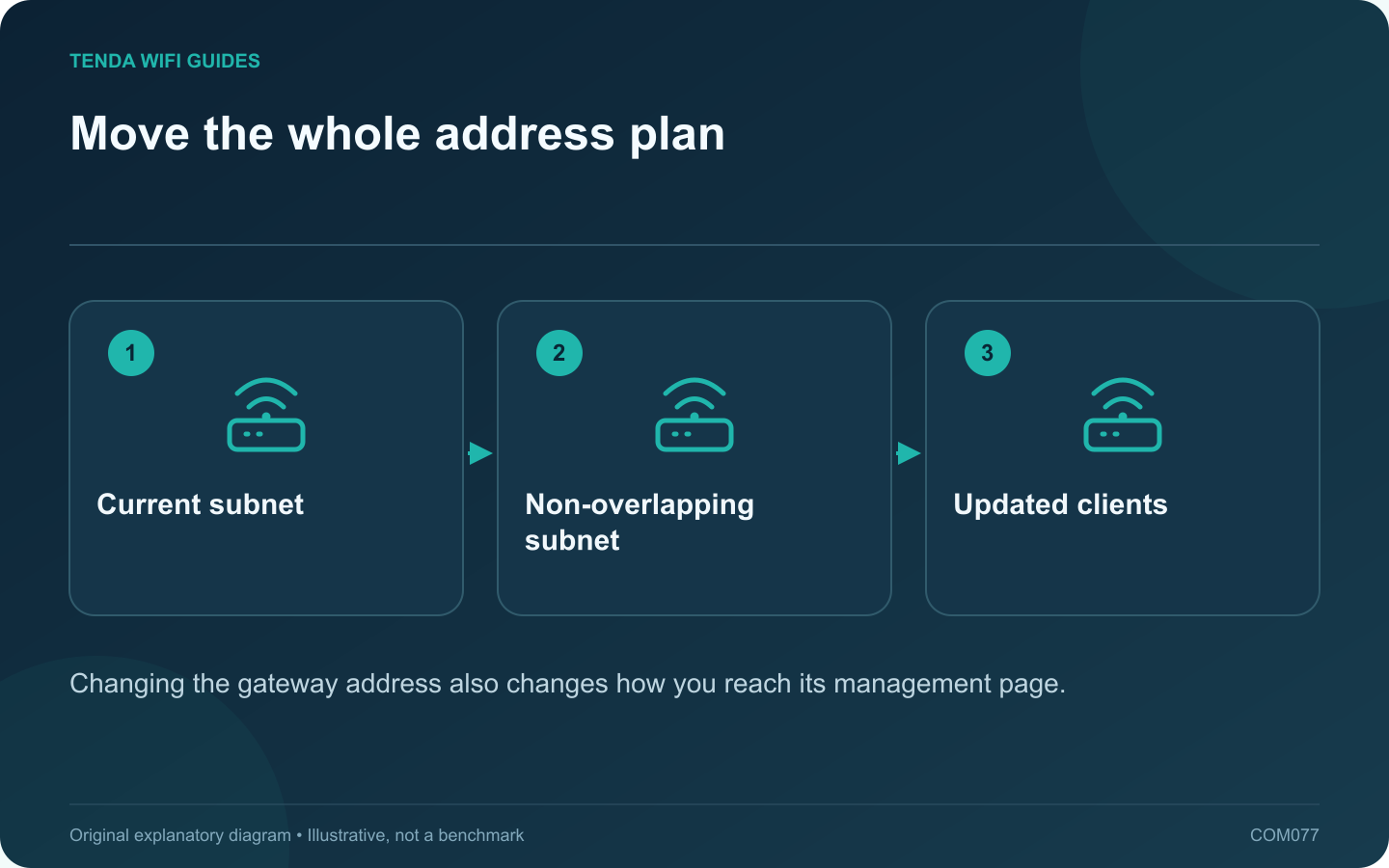
Move the whole address plan: Current subnet; Non-overlapping subnet; Updated clients
Changing the gateway address also changes how you reach its management page.

An overlapping private address range can make a remote network difficult to reach through a VPN or another routed connection. Changing the home LAN range may resolve the overlap, but only when the complete local address plan moves with it. Do not change a work-managed network without its administrator.

Confirm the overlap first

Compare the local network and the remote network information supplied by the responsible administrator. A similar-looking number is not enough; the subnet mask or prefix determines the range. Ask for a non-overlapping private range appropriate to the arrangement.

Inventory fixed dependencies

  • DHCP reservations and manually configured clients.
  • Printer ports and storage bookmarks using numeric addresses.
  • Forwarding or access rules referring to local addresses.
  • Access points with fixed management addresses.

GL.iNet’s LAN guide documents changing the local subnet and reservation settings. Other routers expose different controls, so use the model’s supported process.

Perform the change locally

  1. Save a private backup and readable record.
  2. Choose a maintenance period and remain physically near the router.
  3. Set the new supported LAN address and DHCP range.
  4. Reconnect the administration client so it obtains new settings.
  5. Open the router at its new management address.

Repair the dependencies deliberately

Update manually addressed devices and application shortcuts that still refer to the old range. Confirm reservations remain valid under the product’s rules. Test a normal dynamic client before troubleshooting every individual peripheral.

Verify the original problem

Reconnect the intended VPN and test the specific remote resource. Also check local printing, storage and internet access. If the remote issue remains, the overlap may not have been the only cause.

Record the final address plan where an authorized household administrator can find it. A subnet change should leave fewer ambiguities, not a mix of old fixed addresses and new dynamic leases that produces intermittent failures later.

Sources and editorial notes

Sources checked 8 October 2026. Independent guidance and original illustrations; product comparisons use published specifications rather than hands-on benchmarks. Check the exact model, revision and regional documentation before changing settings.

Related guides

300 FAQs across our guide libraries

Quick answers

100 practical questions from Tenda WiFi Guides.

Browse all 100 FAQs
When can changing the router’s LAN subnet help?

An overlapping private address range can make a remote network difficult to reach through a VPN or another routed connection. Changing the home LAN range may resolve the overlap, but only when the complete local address plan moves with it. Do not change a work-managed network without its administrator. Compare the local network and the remote network information supplied by the responsible administrator. A similar-looking number is not enough; the subnet mask or prefix determines the range. Ask for a non-overlapping private range appropriate to the arrangement.

Read the full guide and sources
Will changing router DNS affect every device?

A router DNS change can affect many household clients, but it does not prove that every application will use the chosen resolver. A device, browser or VPN may have its own policy. Define the intended result before changing the router: troubleshooting, filtering, privacy or a provider requirement. Note the router's DNS mode, the test client's network settings and any active VPN or browser secure-DNS configuration. Keep the old values so you can reverse the change. If this is a work-managed device, follow its administrator's policy rather than overriding it.

Read the full guide and sources
Does Dynamic DNS make a home service reachable automatically?

Dynamic DNS keeps a hostname associated with a changing address. It does not, by itself, create an inbound route, remove provider address sharing or make a local service safe to expose. Treat naming, reachability and service authentication as separate checks. Use the dynamic-DNS provider's documented status and lookup process to confirm that the hostname points to the intended current address. GL.iNet's DDNS guidance directs users to compare the active WAN information and includes interactions with VPN settings. Follow the version-specific instructions for your device.

Read the full guide and sources
What needs to support IPv6 before I enable it?

IPv6 setup is a connection-planning task, not a universal speed upgrade. Your provider, router and clients must support a compatible arrangement. Begin with the provider's published configuration instructions and the exact router firmware you are using. Confirm whether IPv6 is available on the subscription and how the router should obtain its configuration. Use provider-supplied values when a specific setting is required. Do not copy an address or prefix from a screenshot belonging to another customer.

Read the full guide and sources
Independent. Practical. Clear.

Tenda WiFi Guides is an independent information website. We are not affiliated with or endorsed by Tenda. Product names belong to their respective owners.