Independent setup & troubleshootingHelping you find your connection.
The guide library

Tenda RX2 Pro: plan router, AP or Client+AP mode before setup

Explore the guide library · Tenda configuration

Use the model’s supported modes to decide who supplies internet routing and whether the upstream connection is wired or wireless.
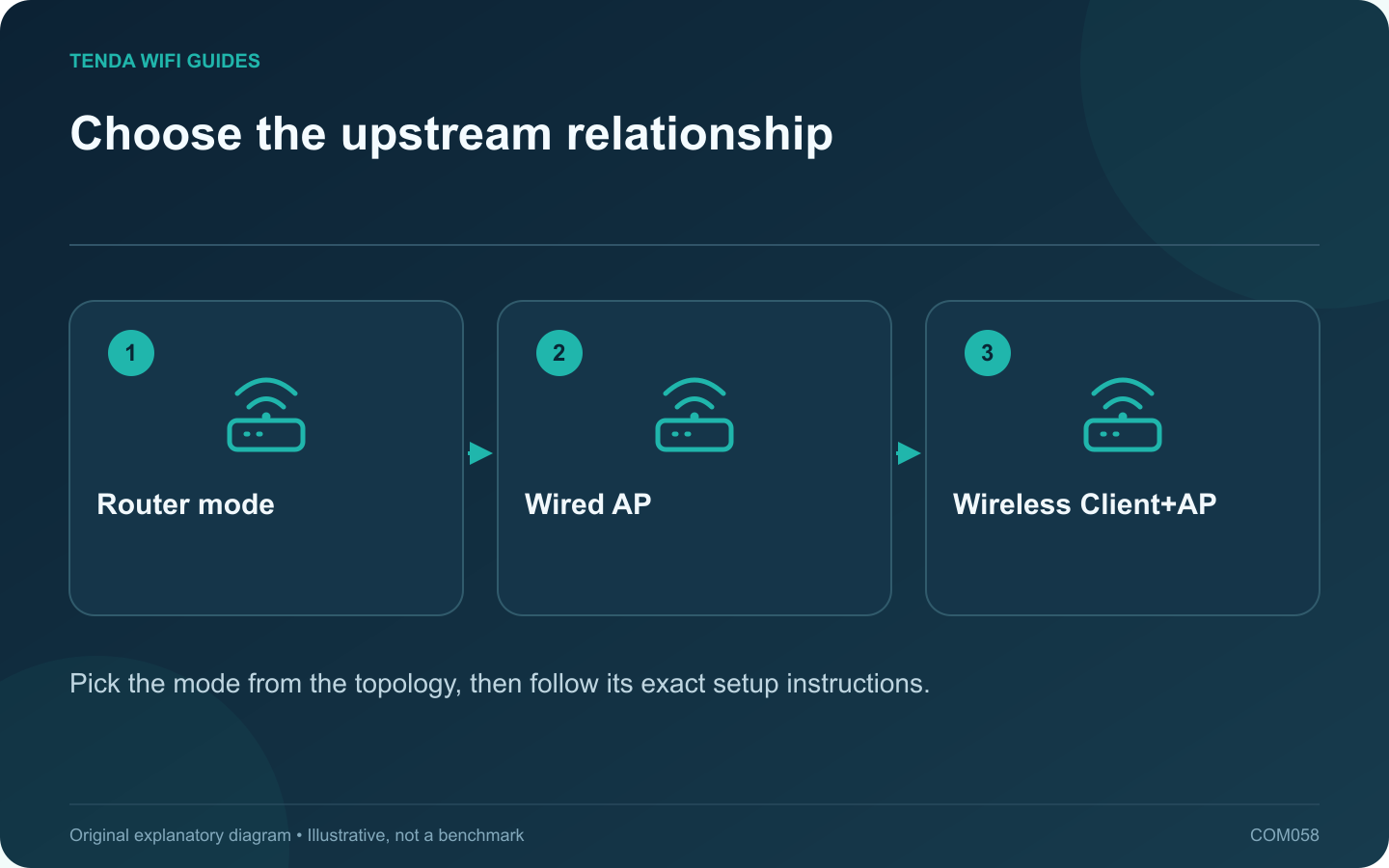
Choose the upstream relationship: Router mode; Wired AP; Wireless Client+AP
Pick the mode from the topology, then follow its exact setup instructions.

Choose the RX2 Pro’s operating mode from the role it needs to perform. Is it the household gateway, an Ethernet-connected wireless access point, or a device repeating an existing wireless connection? Starting with that question avoids entering credentials into the wrong setup path.

What the product lists

Tenda’s RX2 Pro specification lists wireless-router mode, AP mode and universal repeater mode labeled Client+AP. That establishes available categories, but it does not mean every feature behaves identically in each one. Check the current guide for your hardware and firmware before switching.

Draw the upstream connection

  • Main gateway: identify the provider handoff and the internet configuration the RX2 Pro must use.
  • Wired access point: identify the existing router that will keep supplying the network’s gateway functions.
  • Client+AP: identify the upstream wireless network and a placement where that connection is usable.

Write down where a printer or storage device sits. You need to know whether the planned topology lets the important clients reach that resource.

Prepare for a management-address change

Save the current configuration and note how the chosen mode obtains or uses its management address. Do not assume the old address remains valid after switching. Keep the manufacturer’s recovery instructions accessible from another connection.

Validate one client before moving everything

  1. Apply the supported mode-specific setup and wiring.
  2. Check the RX2 Pro’s connection status.
  3. Connect one test client and inspect its address and gateway.
  4. Test internet access and the required local resource.
  5. Confirm any guest or management feature you intend to retain.

If the result differs from the topology you planned, stop and inspect the mode and upstream role before changing DNS or resetting both routers.

The correct mode is a network-design choice. Select it because it produces the intended connection and policy behavior, not because it is the first option offered by a setup wizard.

Sources and editorial notes

Sources checked 8 October 2026. Independent guidance and original illustrations; product comparisons use published specifications rather than hands-on benchmarks. Check the exact model, revision and regional documentation before changing settings.

Related guides

300 FAQs across our guide libraries

Quick answers

100 practical questions from Tenda WiFi Guides.

Browse all 100 FAQs
Which RX2 Pro operating mode should I plan before setup?

Choose the RX2 Pro's operating mode from the role it needs to perform. Is it the household gateway, an Ethernet-connected wireless access point, or a device repeating an existing wireless connection? Starting with that question avoids entering credentials into the wrong setup path. Tenda's RX2 Pro specification lists wireless-router mode, AP mode and universal repeater mode labeled Client+AP. That establishes available categories, but it does not mean every feature behaves identically in each one. Check the current guide for your hardware and firmware before switching.

Read the full guide and sources
How do I identify the correct device for an RX2 Pro reservation?

The useful part of an address reservation is not choosing a memorable number; it is assigning the intended device a predictable address without conflicts. On an RX2 Pro, begin by matching the client to the router's list accurately. Tenda lists DHCP reservation among RX2 Pro's router functions. Check that your unit is operating in a mode where it supplies DHCP and that the current interface exposes the feature. If another gateway serves addresses, configure the reservation there instead.

Read the full guide and sources
How should I allocate the TE6L Pro’s single 2.5G port?

The TE6L Pro's faster Ethernet interface deserves a deliberate assignment. If it is used for the internet feed, it is not also available as a separate faster local socket. Start by drawing the task whose performance you intend to improve. Tenda lists one 2.5 Gbps WAN/LAN interface and three gigabit WAN/LAN interfaces for this model. Verify your exact regional hardware and the supported port-role behavior in its current interface.

Read the full guide and sources
What should I check when assigning WAN ports on a W18E v2.0?

A small office needs a clear connection plan before a multi-WAN-capable router is installed. For W18E v2.0, decide how many internet feeds are actually required and how the remaining local equipment will connect. Flexible port roles do not create additional physical sockets. Tenda lists four gigabit Ethernet interfaces with configurable WAN/LAN arrangements for W18E v2.0. It also lists office-oriented functions such as captive portal and bandwidth controls. Verify the current hardware and documentation before selecting the product for a particular policy requirement.

Read the full guide and sources
Independent. Practical. Clear.

Tenda WiFi Guides is an independent information website. We are not affiliated with or endorsed by Tenda. Product names belong to their respective owners.