Independent setup & troubleshootingHelping you find your connection.
The guide library

Buying a new router for older smart-home devices

Explore the guide library · Router buying guides

Inventory compatibility and onboarding requirements so a router upgrade does not strand existing sensors, plugs or printers.
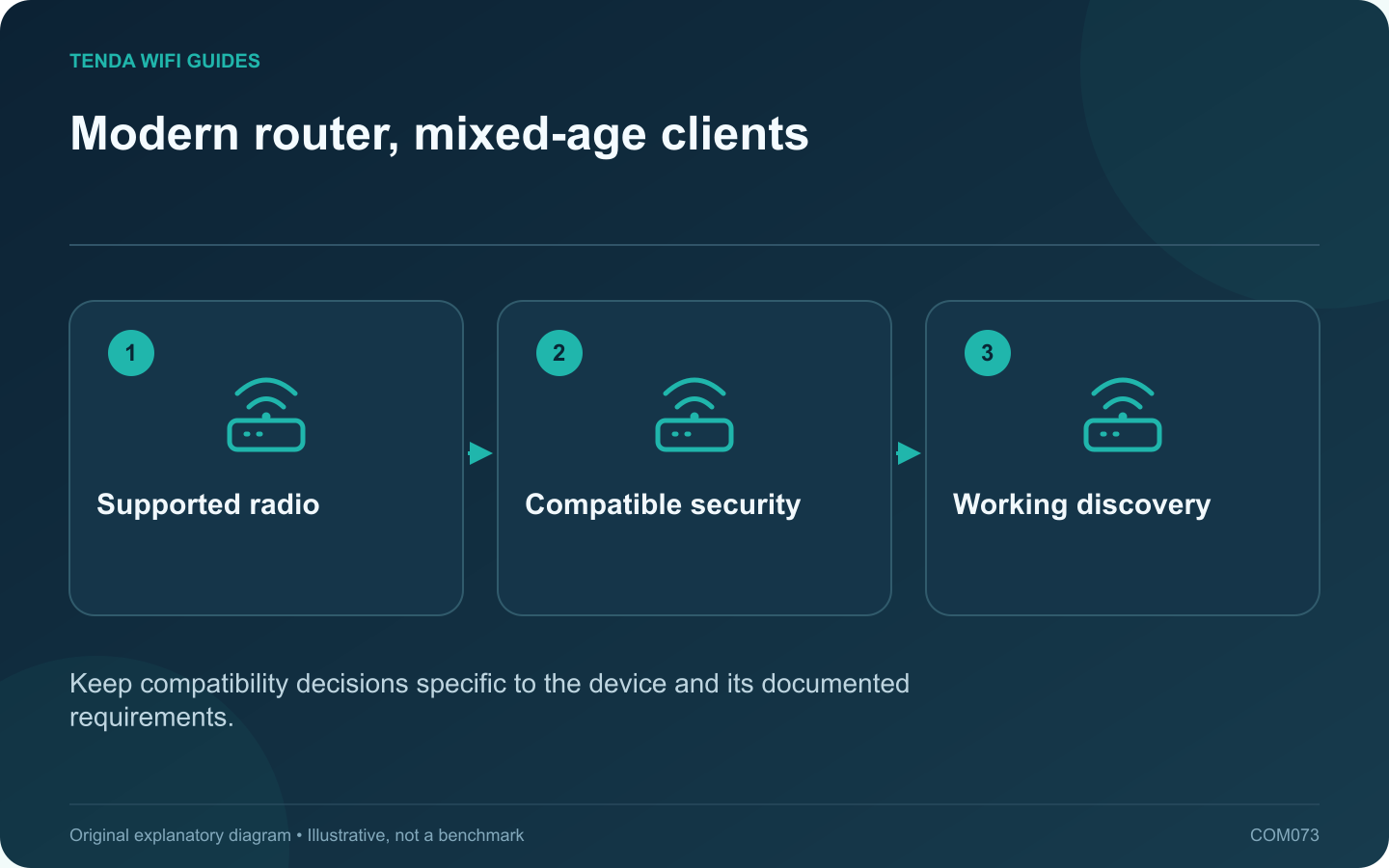
Modern router, mixed-age clients: Supported radio; Compatible security; Working discovery
Keep compatibility decisions specific to the device and its documented requirements.

A household can contain a new laptop and a much older plug, printer or camera at the same time. Before replacing the router, identify the older devices whose connection is essential. The newest Wi-Fi generation does not automatically solve their onboarding or security compatibility.

Build a small compatibility list

Record each device’s exact model, supported band, current firmware and setup method. Note whether its companion application needs the phone on a particular network during pairing. Use the manufacturer’s documentation rather than assuming every smart-home product uses the same process.

Review security support

Some older clients do not support WPA3-only operation. TP-Link documents compatibility issues involving older IoT devices and mixed security modes. Apple recommends modern secure settings and avoiding obsolete protection choices.

Look for a supported arrangement that keeps the main network appropriately protected while accommodating essential clients. Do not choose an open network, WEP or another obsolete option merely to retain an unsupported device. Replacement may be the better long-term decision.

Check local communication needs

A guest or isolated network can prevent an application from finding a device. Determine whether the product needs local discovery, cloud access or both. Matter also introduces controller and transport roles that should not be reduced to a simple Wi-Fi password question.

Use one device as the trial

  1. Update the client through its supported method.
  2. Configure the new router’s documented compatible settings.
  3. Pair or reconnect one noncritical device.
  4. Test control from the intended phone and automation system.
  5. Confirm behavior after a normal restart.

Choose by the complete migration

Keep the previous network configuration available until the important household functions pass. Prefer a router whose supported controls you can understand and maintain. An upgrade succeeds when the necessary devices work securely in the planned topology, not simply when the newest laptop reports a newer wireless standard.

Sources and editorial notes

Sources checked 8 October 2026. Independent guidance and original illustrations; product comparisons use published specifications rather than hands-on benchmarks. Check the exact model, revision and regional documentation before changing settings.

Related guides

300 FAQs across our guide libraries

Quick answers

100 practical questions from Tenda WiFi Guides.

Browse all 100 FAQs
What matters when replacing a router used by older smart devices?

A household can contain a new laptop and a much older plug, printer or camera at the same time. Before replacing the router, identify the older devices whose connection is essential. The newest Wi-Fi generation does not automatically solve their onboarding or security compatibility. Record each device's exact model, supported band, current firmware and setup method. Note whether its companion application needs the phone on a particular network during pairing. Use the manufacturer's documentation rather than assuming every smart-home product uses the same process.

Read the full guide and sources
What should I check before using a router for USB storage?

A USB socket does not tell you everything about a router's storage features. Before buying, verify that the exact model can share the type of drive and files you need. Some USB ports serve other functions, and supported storage behavior can vary between models and firmware. Write down the drive format, capacity, power requirement and client devices. Add whether each person needs read-only or write access. If the current drive contains the only copy of important files, make an independent backup before attaching it to new equipment or changing its format.

Read the full guide and sources
How do I check whether a discounted router is still supported?

A discount is useful only if the router remains suitable to operate. Before buying older stock, check whether the manufacturer still maintains the exact hardware revision. A product can remain available from a seller after its official maintenance has ended. Record the complete model, suffix and hardware revision from the listing or packaging. Ask the seller to clarify an ambiguous revision before checkout. Different revisions with similar names may have separate support histories, so searching only the family name can produce the wrong conclusion.

Read the full guide and sources
What should I check before importing a 6 GHz router?

An overseas router listing can look attractive, especially when it advertises an additional band. Before importing, verify that the exact regional product and your client devices support the intended operation where you will use them. A generation label alone is not enough. Some Wi-Fi 7 routers are dual-band and do not include 6 GHz. Compare the actual band specification rather than assuming every newer model includes all capabilities of an older tri-band product. Tenda's RX27 Pro and TE6L Pro illustrate why the detailed radio list matters.

Read the full guide and sources
Independent. Practical. Clear.

Tenda WiFi Guides is an independent information website. We are not affiliated with or endorsed by Tenda. Product names belong to their respective owners.