Independent setup & troubleshootingHelping you find your connection.
The guide library

20 MHz vs 40 MHz on 2.4 GHz: choose stability in a crowded home

Explore the guide library · Wireless settings

Compare channel width with the same clients and workload instead of assuming the widest setting is always best.
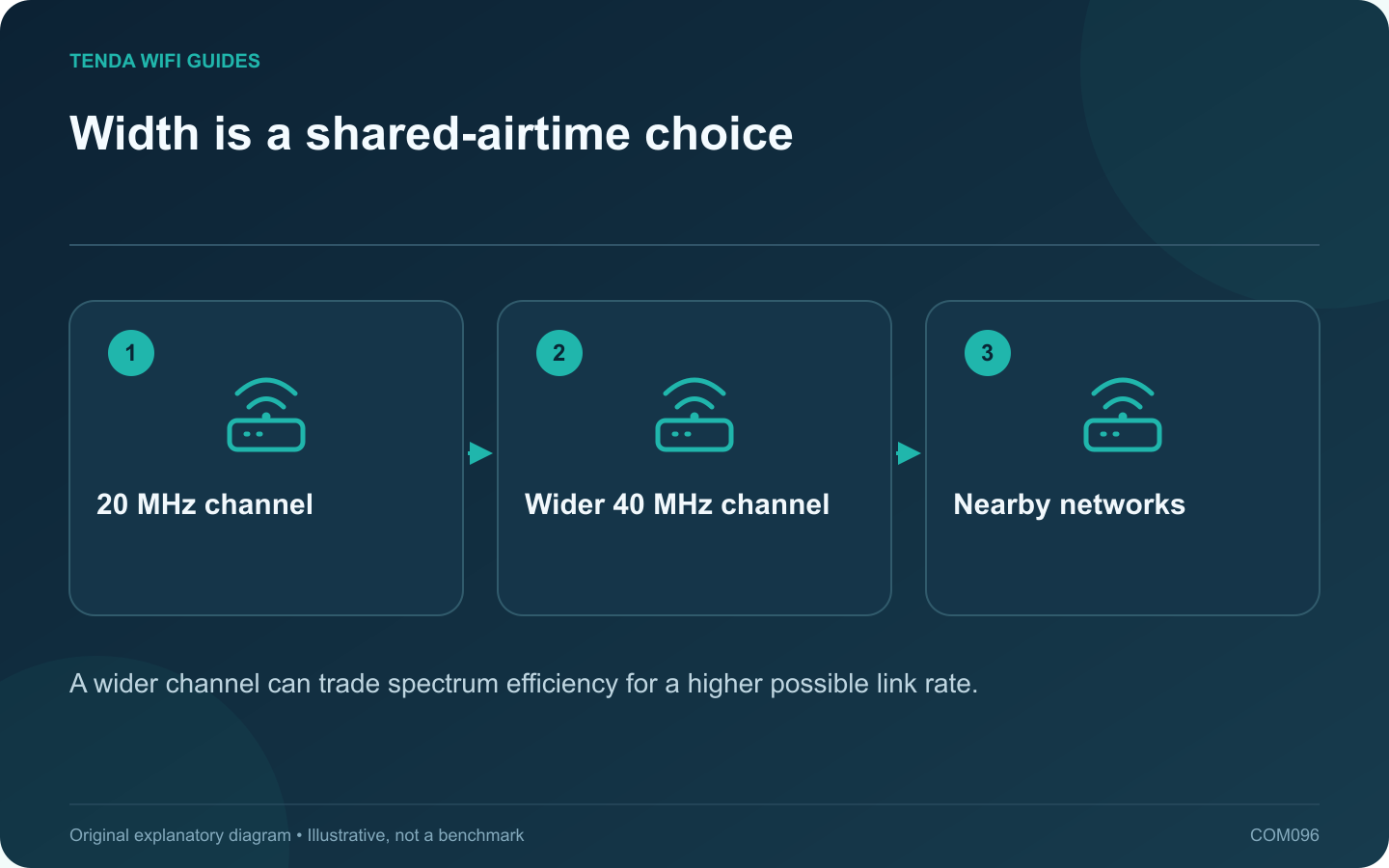
Width is a shared-airtime choice: 20 MHz channel; Wider 40 MHz channel; Nearby networks
A wider channel can trade spectrum efficiency for a higher possible link rate.

The widest available wireless channel is not automatically the most useful setting in a crowded 2.4 GHz environment. Wider operation consumes more spectrum, and neighboring networks and older clients can change the practical result. Evaluate stability and compatibility alongside the reported link rate.

Start with the documented recommendation

Apple recommends 20 MHz width on 2.4 GHz for reliability, while ASUS documents how channel-width options vary by standard and router. Use the exact model’s supported controls. A menu labeled automatic or 20/40 may behave differently from a fixed-width selection.

Choose a representative client

Use the older smart-home device, printer or distant client that actually relies on this band. A nearby modern laptop using 5 GHz is not a useful test of a 2.4 GHz change.

Make a controlled comparison

  1. Record the current width, channel and security settings.
  2. Test the client’s normal task at its usual location.
  3. Change only the supported channel-width setting.
  4. Reconnect if required and repeat the task.
  5. Observe stability during an ordinary busy period.

Interpret the result sensibly

A lower negotiated rate may still provide a better experience if the connection becomes more consistent. Conversely, if the original task already works reliably, a change may offer little benefit.

Do not move the router, change security and update several clients during the same comparison. That makes it difficult to identify which action affected the result.

Keep a sustainable arrangement

Use locally permitted channels and retain modern supported security. Move demanding compatible clients to an appropriate other band or wired connection when practical, leaving 2.4 GHz to serve the devices that need it.

The final choice should be a documented setting that works with the household’s real mix of devices. A larger width or a higher theoretical rate is one technical capability, not evidence that every application will become faster or more reliable.

Sources and editorial notes

Sources checked 8 October 2026. Independent guidance and original illustrations; product comparisons use published specifications rather than hands-on benchmarks. Check the exact model, revision and regional documentation before changing settings.

Related guides

300 FAQs across our guide libraries

Quick answers

100 practical questions from Tenda WiFi Guides.

Browse all 100 FAQs
Should crowded 2.4 GHz Wi-Fi use 20 MHz or 40 MHz channels?

The widest available wireless channel is not automatically the most useful setting in a crowded 2.4 GHz environment. Wider operation consumes more spectrum, and neighboring networks and older clients can change the practical result. Evaluate stability and compatibility alongside the reported link rate. Apple recommends 20 MHz width on 2.4 GHz for reliability, while ASUS documents how channel-width options vary by standard and router. Use the exact model's supported controls. A menu labeled automatic or 20/40 may behave differently from a fixed-width selection.

Read the full guide and sources
Should Wi-Fi channels be selected automatically or manually?

Automatic channel selection is a sensible baseline for many home routers. A manual channel can help investigate a repeatable problem, but choosing one from a screenshot of nearby network names is not enough to establish a better configuration. Write down the band, channel width, client location and normal task result. Include the time of day because neighboring traffic changes. Apple recommends automatic channel selection for supported home setups; begin there unless the router or your installation has a documented reason to differ.

Read the full guide and sources
What should I test before separating Wi-Fi band names?

A combined wireless name can let compatible devices use the router's supported band-selection behavior. Splitting the names gives you a more explicit connection choice, but it also changes how devices reconnect and move around the home. Diagnose the task before making that change for everyone. Confirm which bands the device supports and which band it currently uses. Record its location and the failing task. A low-bandwidth smart device connected on 2.4 GHz may be working exactly as designed, while a nearby laptop with a demanding transfer presents a different question.

Read the full guide and sources
Why can 5 GHz Wi-Fi appear late after a restart?

If 2.4 GHz appears immediately after a restart but 5 GHz takes longer, do not assume the 5 GHz radio has failed. On a DFS channel, the router may need to perform an availability check before using the channel. Verify the selected channel and the device's documented behavior. TP-Link explains that DFS equipment checks for radar and can move away from a channel when radar is detected. Channel availability and checking periods depend on the applicable region and channel. That can create a startup delay or a later channel change.

Read the full guide and sources
Independent. Practical. Clear.

Tenda WiFi Guides is an independent information website. We are not affiliated with or endorsed by Tenda. Product names belong to their respective owners.