Independent setup & troubleshootingHelping you find your connection.
The guide library

Why a 5 GHz network may appear late after the router restarts

Explore the guide library · Wireless settings

Recognize a possible DFS availability check and distinguish it from a disabled radio or failed startup.
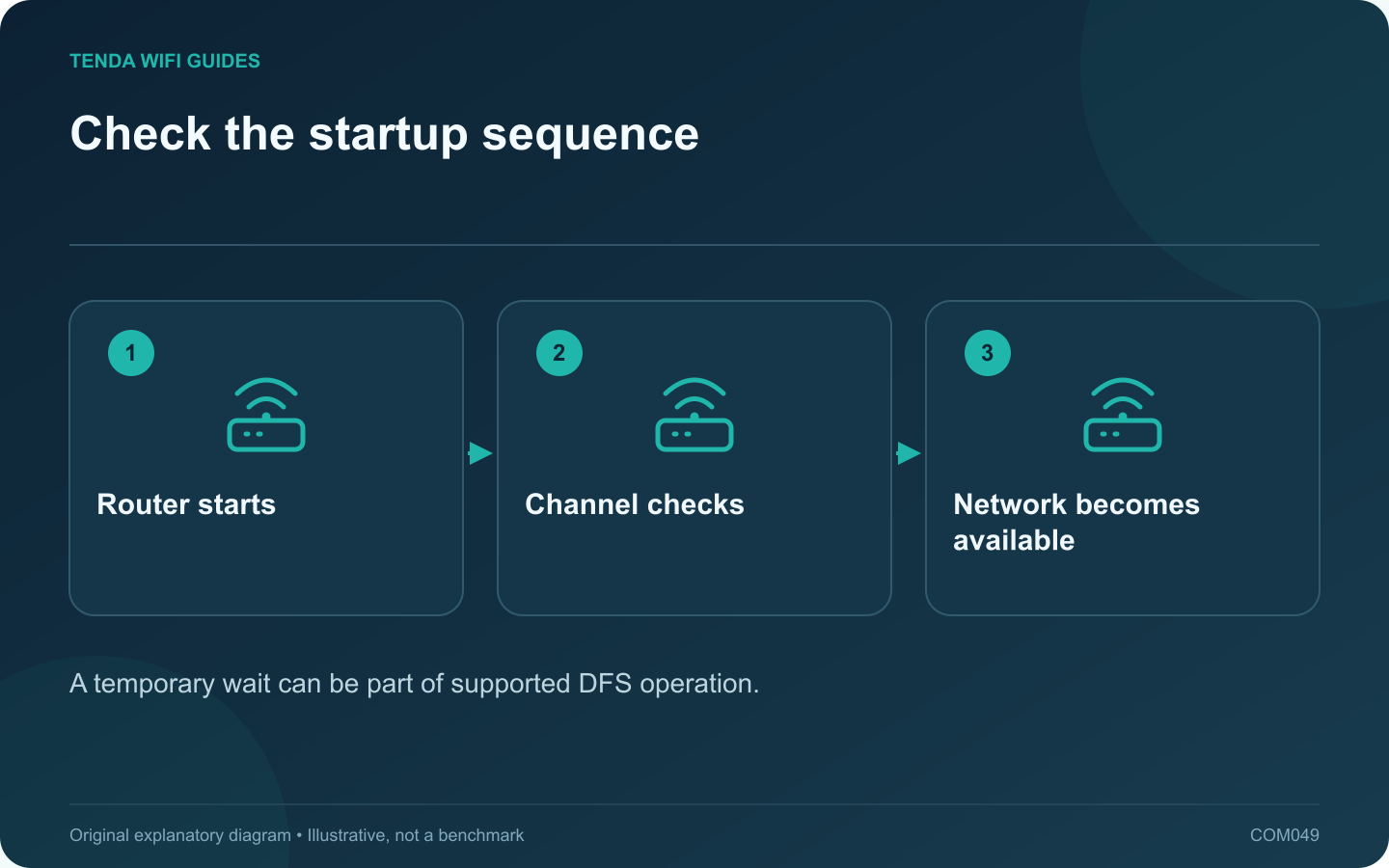
Check the startup sequence: Router starts; Channel checks; Network becomes available
A temporary wait can be part of supported DFS operation.

If 2.4 GHz appears immediately after a restart but 5 GHz takes longer, do not assume the 5 GHz radio has failed. On a DFS channel, the router may need to perform an availability check before using the channel. Verify the selected channel and the device’s documented behavior.

What DFS changes

TP-Link explains that DFS equipment checks for radar and can move away from a channel when radar is detected. Channel availability and checking periods depend on the applicable region and channel. That can create a startup delay or a later channel change.

Keep the router configured for its actual region. Selecting a different country to force a channel is not a valid troubleshooting method.

Observe one complete startup

  1. Note when the router was restarted and whether its normal status indicators return.
  2. Check the 5 GHz radio and channel status through a working local connection.
  3. Allow the documented availability-check period to finish.
  4. Check the network list with a known-compatible client.
  5. Record whether the network appears and remains stable afterward.

Do not keep restarting the waiting period

Repeated power cycles can make a normal startup sequence look like a persistent failure. Wait for the documented process once before deciding the radio is unavailable. If the network never appears, inspect whether the radio is enabled and whether the client supports the configured channel.

Use a supported comparison when appropriate

If recurring DFS events interrupt important tasks, compare an available non-DFS configuration permitted by the router and region. Keep channel width, client and location consistent so the result addresses the channel choice rather than several simultaneous changes.

Save the original configuration and check other clients after any change. A non-DFS channel is a diagnostic or operating choice, not a guarantee of better performance in every neighborhood.

Escalate with the observed channel, timing and firmware version if the behavior does not match the manufacturer’s documentation.

Sources and editorial notes

Sources checked 8 October 2026. Independent guidance and original illustrations; product comparisons use published specifications rather than hands-on benchmarks. Check the exact model, revision and regional documentation before changing settings.

Related guides

300 FAQs across our guide libraries

Quick answers

100 practical questions from Tenda WiFi Guides.

Browse all 100 FAQs
Why can 5 GHz Wi-Fi appear late after a restart?

If 2.4 GHz appears immediately after a restart but 5 GHz takes longer, do not assume the 5 GHz radio has failed. On a DFS channel, the router may need to perform an availability check before using the channel. Verify the selected channel and the device's documented behavior. TP-Link explains that DFS equipment checks for radar and can move away from a channel when radar is detected. Channel availability and checking periods depend on the applicable region and channel. That can create a startup delay or a later channel change.

Read the full guide and sources
Should crowded 2.4 GHz Wi-Fi use 20 MHz or 40 MHz channels?

The widest available wireless channel is not automatically the most useful setting in a crowded 2.4 GHz environment. Wider operation consumes more spectrum, and neighboring networks and older clients can change the practical result. Evaluate stability and compatibility alongside the reported link rate. Apple recommends 20 MHz width on 2.4 GHz for reliability, while ASUS documents how channel-width options vary by standard and router. Use the exact model's supported controls. A menu labeled automatic or 20/40 may behave differently from a fixed-width selection.

Read the full guide and sources
What could stop working when scheduled Wi-Fi turns off?

A Wi-Fi schedule affects more than the phones put away at bedtime. Cameras, speakers, updates, cloud backups and household routines may still depend on the network. Inventory those jobs before enabling a timer. Read whether the router turns off a whole radio, a particular network, a guest network or only its indicator lights. GL.iNet's scheduled-task documentation distinguishes LED, reboot and Wi-Fi schedules and requires a correct time configuration. Those actions are not interchangeable.

Read the full guide and sources
Should Wi-Fi channels be selected automatically or manually?

Automatic channel selection is a sensible baseline for many home routers. A manual channel can help investigate a repeatable problem, but choosing one from a screenshot of nearby network names is not enough to establish a better configuration. Write down the band, channel width, client location and normal task result. Include the time of day because neighboring traffic changes. Apple recommends automatic channel selection for supported home setups; begin there unless the router or your installation has a documented reason to differ.

Read the full guide and sources
Independent. Practical. Clear.

Tenda WiFi Guides is an independent information website. We are not affiliated with or endorsed by Tenda. Product names belong to their respective owners.