Independent setup & troubleshootingHelping you find your connection.
The guide library

Automatic vs manual Wi-Fi channels: choose with a repeatable test

Explore the guide library · Wireless settings

Keep automatic selection as a baseline and use manual channels only when a controlled comparison shows a practical benefit.
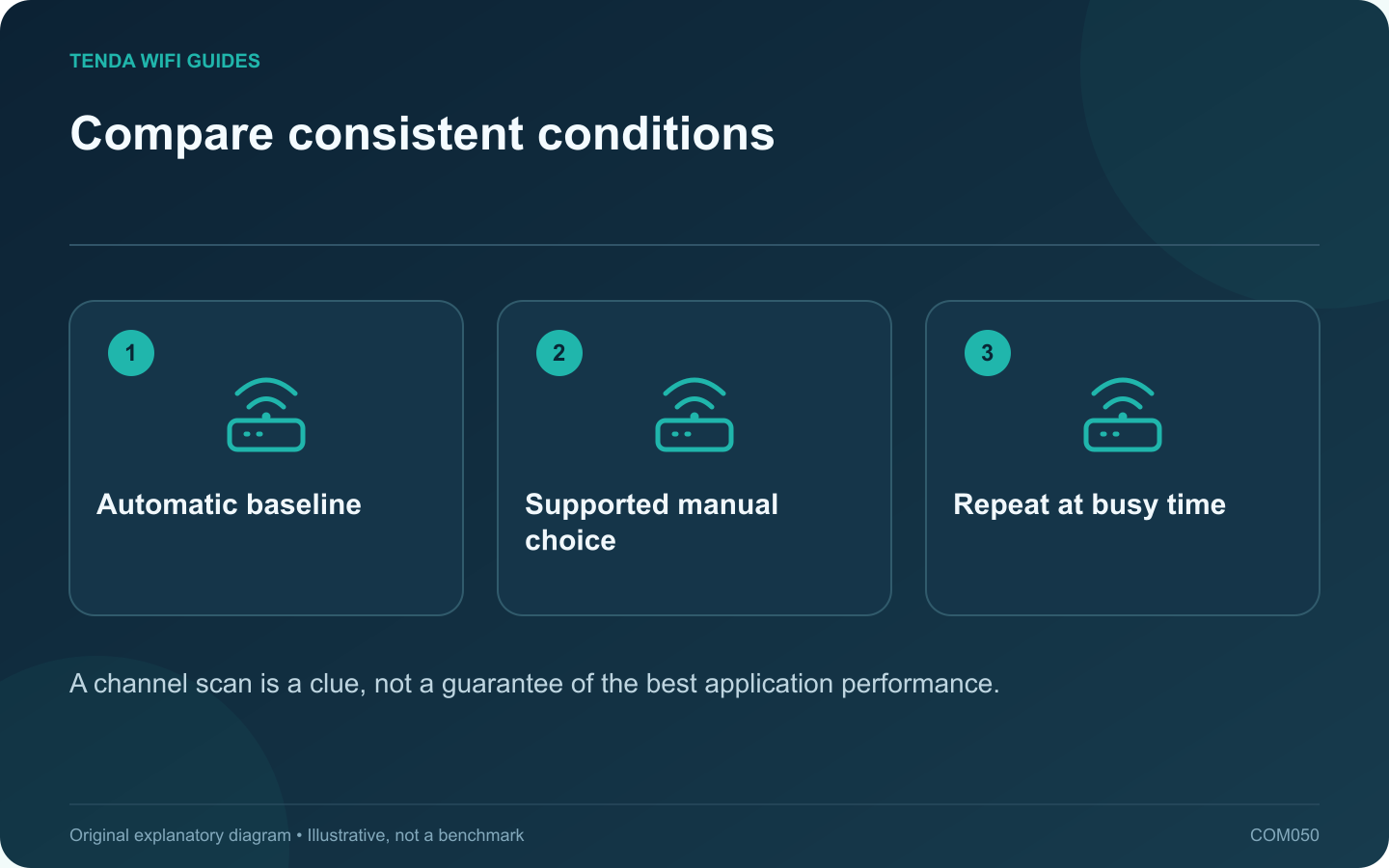
Compare consistent conditions: Automatic baseline; Supported manual choice; Repeat at busy time
A channel scan is a clue, not a guarantee of the best application performance.

Automatic channel selection is a sensible baseline for many home routers. A manual channel can help investigate a repeatable problem, but choosing one from a screenshot of nearby network names is not enough to establish a better configuration.

Record the baseline

Write down the band, channel width, client location and normal task result. Include the time of day because neighboring traffic changes. Apple recommends automatic channel selection for supported home setups; begin there unless the router or your installation has a documented reason to differ.

Keep the client and task fixed. A speed test from a different room cannot tell you whether the channel change helped.

Choose only a supported alternative

Use channels available in the router’s correct regional configuration. On 5 GHz, account for DFS behavior; TP-Link documents radar-related checks and channel changes. Do not interpret every automatic change as a router defect.

Run a fair comparison

  1. Save the current settings.
  2. Change the channel while keeping the width and other radio options stable.
  3. Reconnect the test client if required.
  4. Repeat the everyday task, noting stalls and loss of connectivity.
  5. Repeat during the usual busy period and compare with the baseline.

Check the other devices

An improvement for a modern laptop can coincide with a compatibility problem on an older device. Test the important printer, smart appliance and distant room before keeping a household-wide channel change.

For multiple access points, consider the whole deployment. Individually forcing every access point onto the same apparent “best” channel can create a different problem. Use the system’s supported planning or optimization tools.

Keep a reason to retain the setting

If the practical result is unchanged or less reliable, restore the previous automatic configuration. Record a manual choice only when you can explain the benefit and reproduce it. Revisit it when the access-point layout or neighborhood conditions change.

Sources and editorial notes

Sources checked 8 October 2026. Independent guidance and original illustrations; product comparisons use published specifications rather than hands-on benchmarks. Check the exact model, revision and regional documentation before changing settings.

Related guides

300 FAQs across our guide libraries

Quick answers

100 practical questions from Tenda WiFi Guides.

Browse all 100 FAQs
Should Wi-Fi channels be selected automatically or manually?

Automatic channel selection is a sensible baseline for many home routers. A manual channel can help investigate a repeatable problem, but choosing one from a screenshot of nearby network names is not enough to establish a better configuration. Write down the band, channel width, client location and normal task result. Include the time of day because neighboring traffic changes. Apple recommends automatic channel selection for supported home setups; begin there unless the router or your installation has a documented reason to differ.

Read the full guide and sources
Should crowded 2.4 GHz Wi-Fi use 20 MHz or 40 MHz channels?

The widest available wireless channel is not automatically the most useful setting in a crowded 2.4 GHz environment. Wider operation consumes more spectrum, and neighboring networks and older clients can change the practical result. Evaluate stability and compatibility alongside the reported link rate. Apple recommends 20 MHz width on 2.4 GHz for reliability, while ASUS documents how channel-width options vary by standard and router. Use the exact model's supported controls. A menu labeled automatic or 20/40 may behave differently from a fixed-width selection.

Read the full guide and sources
How do I tell a WPS action from a factory-reset action?

Before pressing a button to connect a new device, check whether it is dedicated to WPS or shared with reset or another function. A long press on the wrong control can turn a simple pairing task into a full network reconfiguration. Read the printed label and the manual for the router's model and revision. Look for separate instructions for a short press, a long press or a double press. Do not infer timing from another router in the same brand.

Read the full guide and sources
What should I test before separating Wi-Fi band names?

A combined wireless name can let compatible devices use the router's supported band-selection behavior. Splitting the names gives you a more explicit connection choice, but it also changes how devices reconnect and move around the home. Diagnose the task before making that change for everyone. Confirm which bands the device supports and which band it currently uses. Record its location and the failing task. A low-bandwidth smart device connected on 2.4 GHz may be working exactly as designed, while a nearby laptop with a demanding transfer presents a different question.

Read the full guide and sources
Independent. Practical. Clear.

Tenda WiFi Guides is an independent information website. We are not affiliated with or endorsed by Tenda. Product names belong to their respective owners.