Independent setup & troubleshootingHelping you find your connection.
The guide library

Router schedules running at the wrong time? Check the clock first

Explore the guide library · Router maintenance

Verify the router’s time, timezone and synchronization before rebuilding parental, Wi-Fi or reboot schedules.
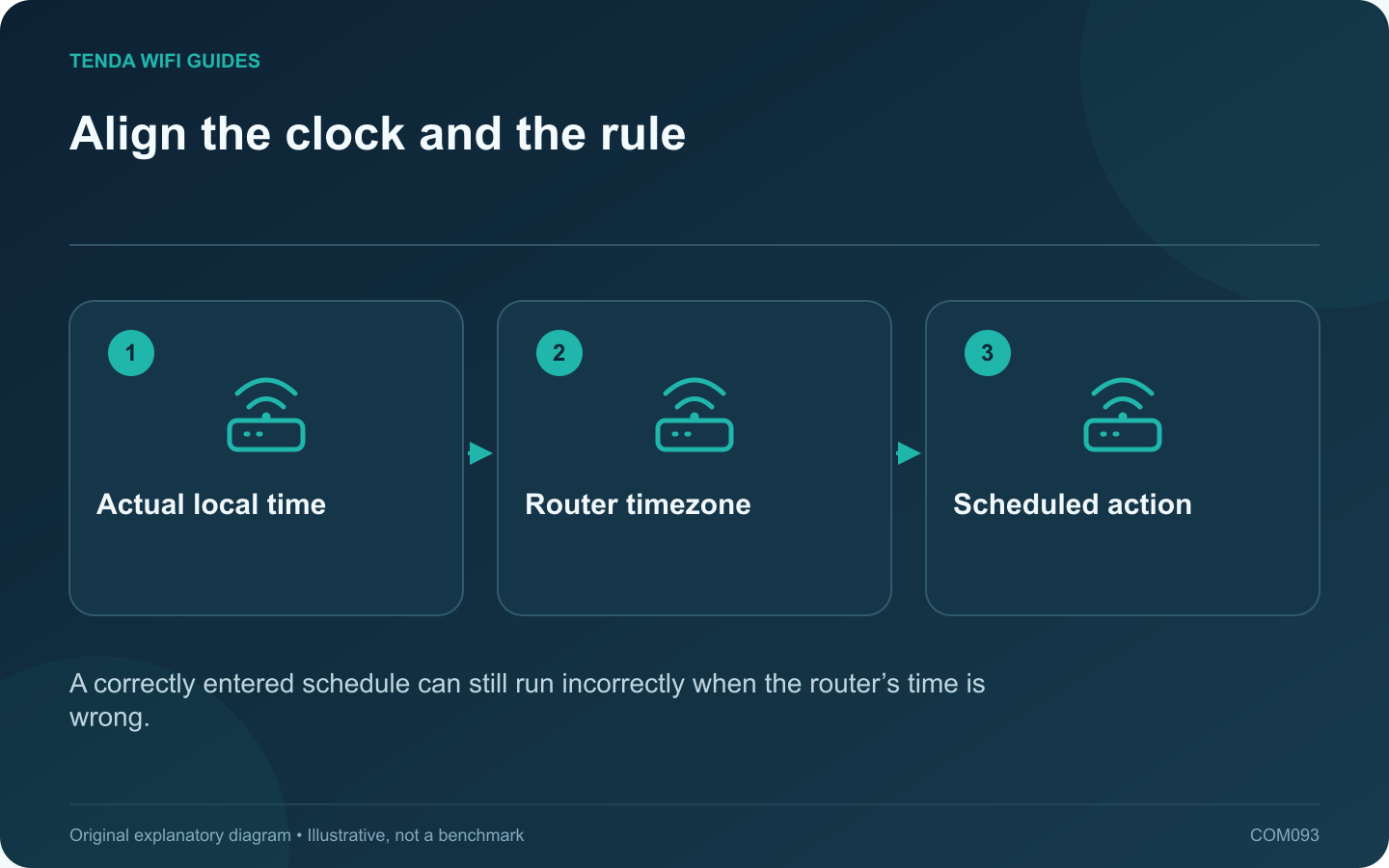
Align the clock and the rule: Actual local time; Router timezone; Scheduled action
A correctly entered schedule can still run incorrectly when the router’s time is wrong.

When a Wi-Fi schedule or parental rule runs at the wrong hour, inspect the router’s clock before deleting the rule. The schedule may be correct relative to a timezone or system time that does not match the household.

Compare three values

Record the actual local time, the time displayed by the router and the selected timezone. Check the date as well as the hour. An incorrect date can affect logs and other time-dependent operations even when the minutes appear plausible.

Use the supported synchronization method

GL.iNet’s time-zone guide describes selecting and synchronizing the setting, and notes that some functions rely on correct time. Other products may use automatic network time or a different synchronization control. Follow the current guide for the specific firmware.

Inspect the schedule definition

  • Correct days of the week.
  • Start and end times, including overnight periods.
  • Whether the interval means allowed or blocked time.
  • The intended wireless band or client group.
  • Any daylight-saving behavior applicable to the location.

Test a harmless short interval

Use a noncritical test device or an appropriate temporary rule during a maintenance period. Observe both the start and the end. Avoid experimenting with the entire household connection while someone depends on a call, alarm or remote task.

Verify after restart

Check whether the router regains accurate time after a normal restart and internet reconnection. If the clock repeatedly resets or fails to synchronize, investigate that condition before relying on unattended schedules.

Keep a note of the timezone and tested rule semantics. A screenshot that says 22:00 is not sufficient when the interface’s timezone or allow/block meaning is unclear.

Once the clock and a short trial behave correctly, restore the intended schedule and verify it at the next appropriate interval. This separates a timing problem from a genuine failure to apply the access rule.

Sources and editorial notes

Sources checked 8 October 2026. Independent guidance and original illustrations; product comparisons use published specifications rather than hands-on benchmarks. Check the exact model, revision and regional documentation before changing settings.

Related guides

300 FAQs across our guide libraries

Quick answers

100 practical questions from Tenda WiFi Guides.

Browse all 100 FAQs
Why are router schedules running at the wrong time?

When a Wi-Fi schedule or parental rule runs at the wrong hour, inspect the router's clock before deleting the rule. The schedule may be correct relative to a timezone or system time that does not match the household. Record the actual local time, the time displayed by the router and the selected timezone. Check the date as well as the hour. An incorrect date can affect logs and other time-dependent operations even when the minutes appear plausible.

Read the full guide and sources
How can I schedule a router update around important work?

A router firmware update is easier to manage when the interruption is planned. Tell household members when connectivity may stop, check for active calls or transfers and keep an alternative way to read the instructions. Match model, hardware revision and region to the manufacturer's current download or supported online update process. Read the release notes, required intermediate versions and settings-retention instructions. Do not install a similarly named product's firmware.

Read the full guide and sources
How can I prepare router logs without sharing private details?

A router log can help explain a connection failure, but it can also contain device identifiers, addresses and service information. Treat an exported log as private network data. Share only what is needed through the manufacturer's official support process. Write down when the failure happened, the router's timezone, the affected device and the observed symptom. Export relevant logs before a reset or other action that might erase them. GL.iNet's log guide describes viewing, filtering and exporting several log types on supported firmware.

Read the full guide and sources
What belongs in a private router-settings record?

A readable settings record helps when replacing a router or explaining a problem, but it should not expose credentials or private network details. Keep a private recovery record and create a separate redacted copy whenever information must be shared. Write down the router model, firmware, operating mode, provider connection type and a simple cable map. Include the local address plan and the purpose of reservations or special rules. The goal is to explain why a setting exists, not merely capture every screen.

Read the full guide and sources
Independent. Practical. Clear.

Tenda WiFi Guides is an independent information website. We are not affiliated with or endorsed by Tenda. Product names belong to their respective owners.