Independent setup & troubleshootingHelping you find your connection.
The guide library

Wi-Fi 7 MLO: what to check before enabling it

Explore the guide library · Wi-Fi upgrades

Understand the difference between multiple available links and simultaneous radios, then test MLO without disturbing older devices.
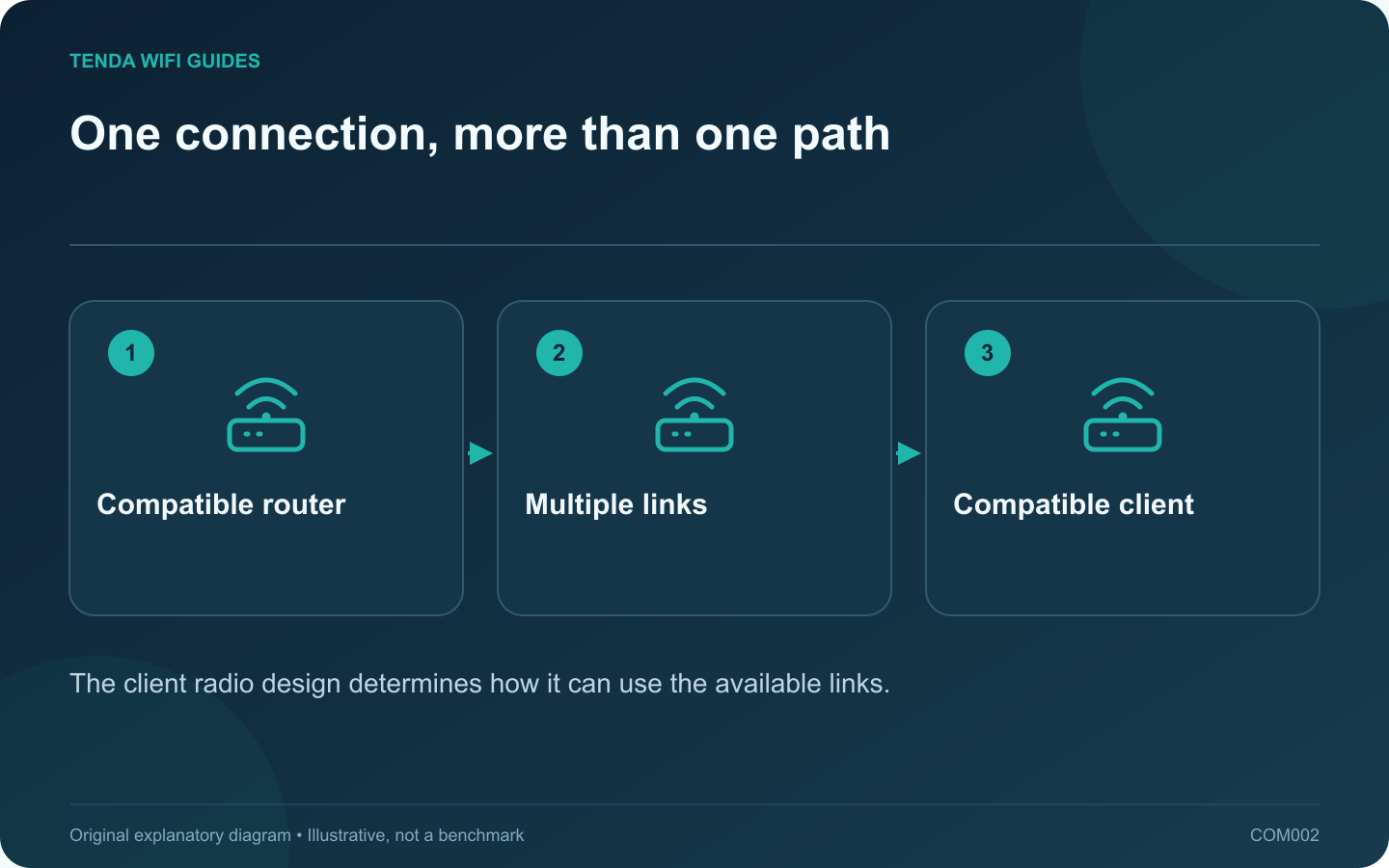
One connection, more than one path: Compatible router; Multiple links; Compatible client
The client radio design determines how it can use the available links.

Multi-link operation, or MLO, lets compatible Wi-Fi 7 equipment coordinate more than one wireless link. The important buying question is not simply whether MLO appears on the box. Ask which bands, radio modes and client software participate in the connection you intend to use.

Two implementations can behave differently

Intel distinguishes a single-radio approach, eMLSR, from a multi-radio approach. The former can use alternative channels with one client radio; the latter can support simultaneous links. That distinction explains why two devices bearing the same Wi-Fi generation label may not deliver identical results.

Do not add the router’s advertised band rates and treat the total as a promised laptop download speed. Your actual client capability must be part of the calculation.

Prepare one test device

  1. Record the router model, revision and firmware. Check its current MLO instructions for the supported band combination.
  2. Confirm the client adapter, operating system and driver support the intended mode. An older client can still be useful on an ordinary network, but it is not a valid MLO test.
  3. Keep the existing working Wi-Fi configuration available. If the router provides a separate MLO network, follow its instructions rather than renaming every household network at once.
  4. Reconnect the test device and inspect the connection information offered by both ends. Merely seeing a new network name does not establish that multiple links are active.

Measure the task, including consistency

Try a large local transfer and an interactive task separately. Note interruptions, repeated stalls and completion time. Compare the same locations before and after enabling MLO; changing room and setting together makes the result difficult to interpret.

If the client becomes unstable, return that client to the previous working configuration and check release notes for both products. Keep other devices on their established network while investigating. A feature is worth retaining when it improves the task without introducing a compatibility problem.

Sources and editorial notes

Sources checked 8 October 2026. Independent guidance and original illustrations; product comparisons use published specifications rather than hands-on benchmarks. Check the exact model, revision and regional documentation before changing settings.

Related guides

300 FAQs across our guide libraries

Quick answers

100 practical questions from Tenda WiFi Guides.

Browse all 100 FAQs
What should I check before turning on Wi-Fi 7 MLO?

Multi-link operation, or MLO, lets compatible Wi-Fi 7 equipment coordinate more than one wireless link. The important buying question is not simply whether MLO appears on the box. Ask which bands, radio modes and client software participate in the connection you intend to use. Intel distinguishes a single-radio approach, eMLSR, from a multi-radio approach. The former can use alternative channels with one client radio; the latter can support simultaneous links. That distinction explains why two devices bearing the same Wi-Fi generation label may not deliver identical results.

Read the full guide and sources
When are 320 MHz Wi-Fi channels useful?

A 320 MHz channel is a capability to evaluate for demanding wireless transfers, not a setting every household needs to maximize. The first question is whether both the router and the device can actually use it in your region. The second is whether the rest of the transfer path has enough capacity to benefit. For example, TP-Link specifies that the Deco BE63's 320 MHz operation is on 6 GHz and depends on compatible clients and regional availability. A router described simply as Wi-Fi 7 may use only 2.4 GHz and 5 GHz. Check the band list before comparing channel widths.

Read the full guide and sources
Will more router antennas make one laptop faster?

A large router with many visible antennas can look like an obvious upgrade. Appearance does not tell you how one laptop will connect. Read the radio specification at both ends and consider the household's simultaneous workloads before paying for a larger design. ASUS lists 4×4 radios for the GT-BE98 Pro's bands, while the Archer BE550 specification describes a different radio arrangement. Those entries are more meaningful than counting plastic antenna housings in a shop photograph.

Read the full guide and sources
Does a 4K-QAM label guarantee faster internet?

4K-QAM is a Wi-Fi 7 radio capability, not a separate internet plan or a guarantee that a download becomes four times faster. The label describes how information can be carried by the wireless signal. Buying advice becomes misleading when that technical feature is presented as a whole-network speed result. Intel includes 4K-QAM among Wi-Fi 7's capacity improvements. On your comparison worksheet, place it under radio features. Keep measured performance, Ethernet port rates, coverage requirements and subscription costs in separate columns. Mixing those categories makes it easy to count the same marketing benefit twice.

Read the full guide and sources
Independent. Practical. Clear.

Tenda WiFi Guides is an independent information website. We are not affiliated with or endorsed by Tenda. Product names belong to their respective owners.